Want to know when someone sends an urgent DM on Instagram? This template emails you, tells the person you have been alerted and sets the chat aside in a folder, so you can answer it yourself.

Kshitij Maheshwari


Get an email when an Instagram DM sounds urgent. The sender gets a short reply and the chat goes into a Needs a human folder. Copy the template.
When someone sends a DM that sounds urgent, this template emails you, tells them you have been alerted and puts the chat in a folder called "Needs a human". Inrō reads each message for its meaning, so people do not need a keyword. You add your email address and phone number.
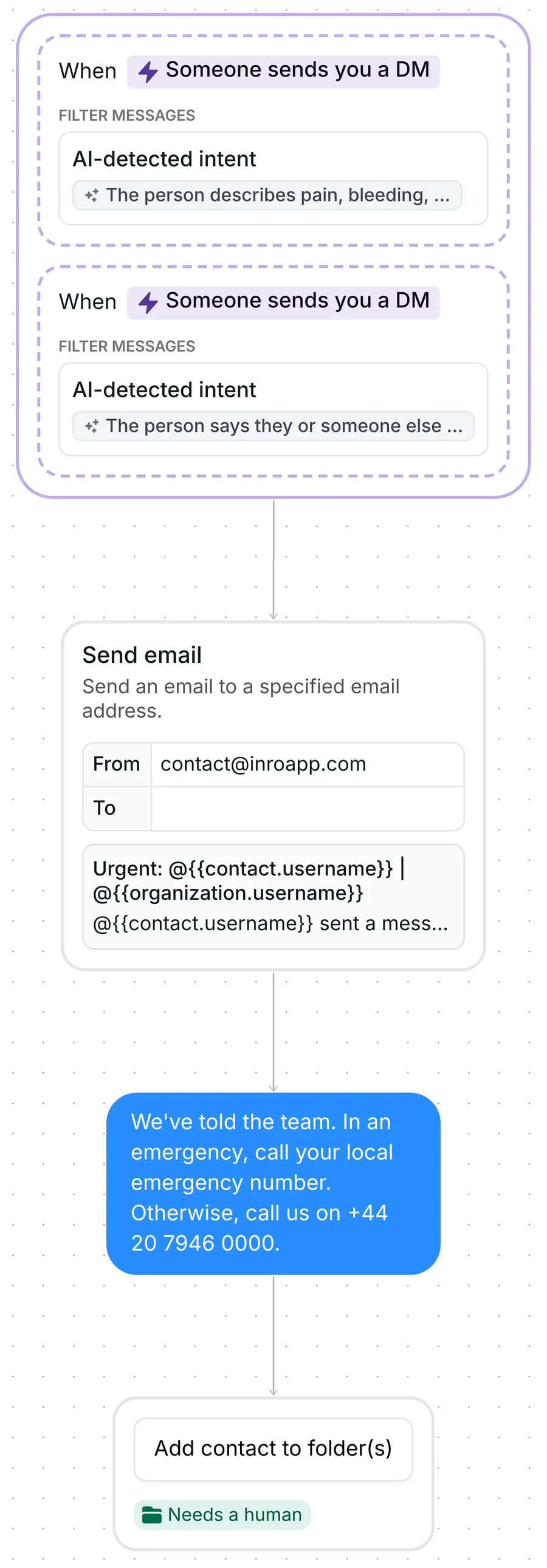
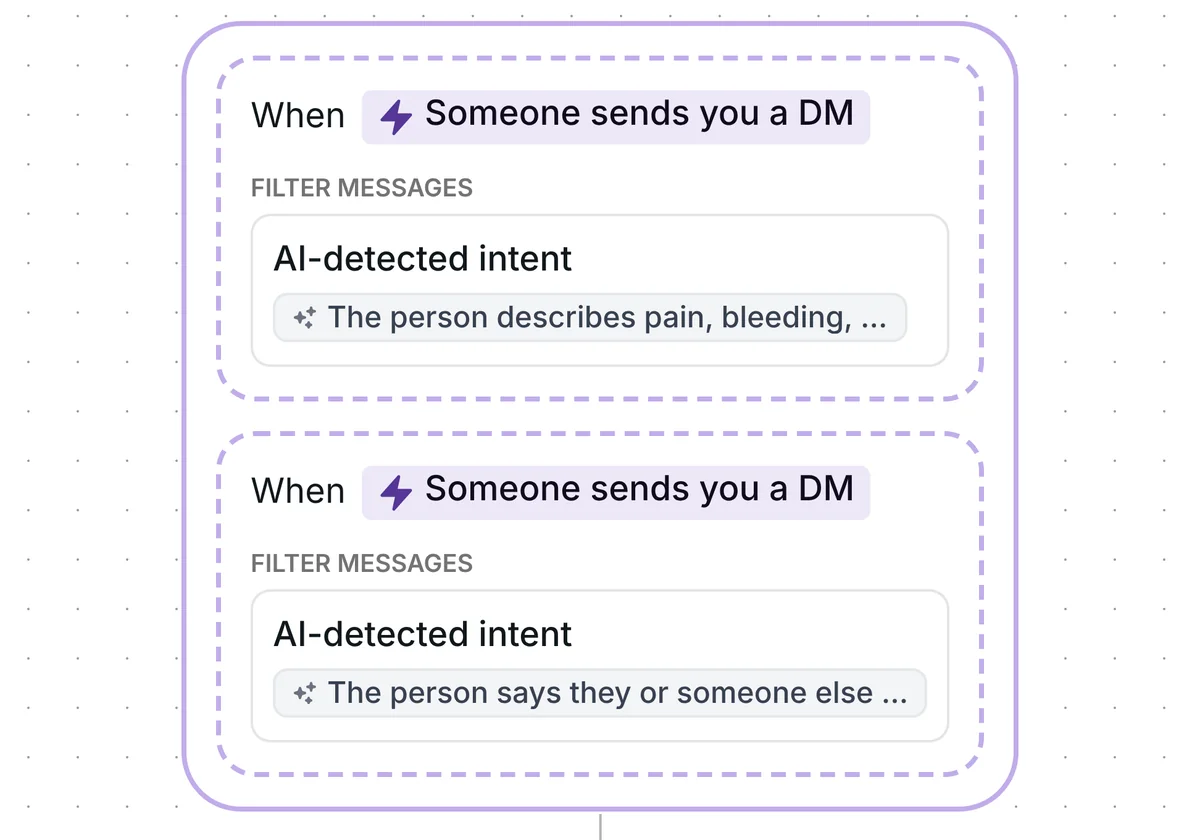
The template has two triggers on your DMs, and either one is enough. Each trigger carries a sentence in plain words that describes a kind of message that should not wait. Inrō uses intent detection: it reads the message for what it means, not for fixed words, and compares it with your sentence.
The two sentences that come with the template describe messages that sound urgent. They are yours to change, so you decide what counts as urgent for your business. Both sentences also say what does not count: a short button reply such as "Yes" or "Not yet", and a routine question.
The triggers work on the first message of a conversation and on any later one. When a message matches both, the template still runs once for that message.

The app itself warns that "AI-detected intents may not always be accurate", so keep reading your DMs. This template is not an emergency service.
The first step sends an email to the address you set. The subject names the person and your account: "Urgent: @username | @youraccount", with their username and yours filled in.
The body says the person sent a message that may be urgent and tells you to open the chat in the Inrō inbox or on Instagram. It does not repeat what they wrote, so you read the message in the conversation itself. The email comes from contact@inroapp.com and is sent in the name of your account.
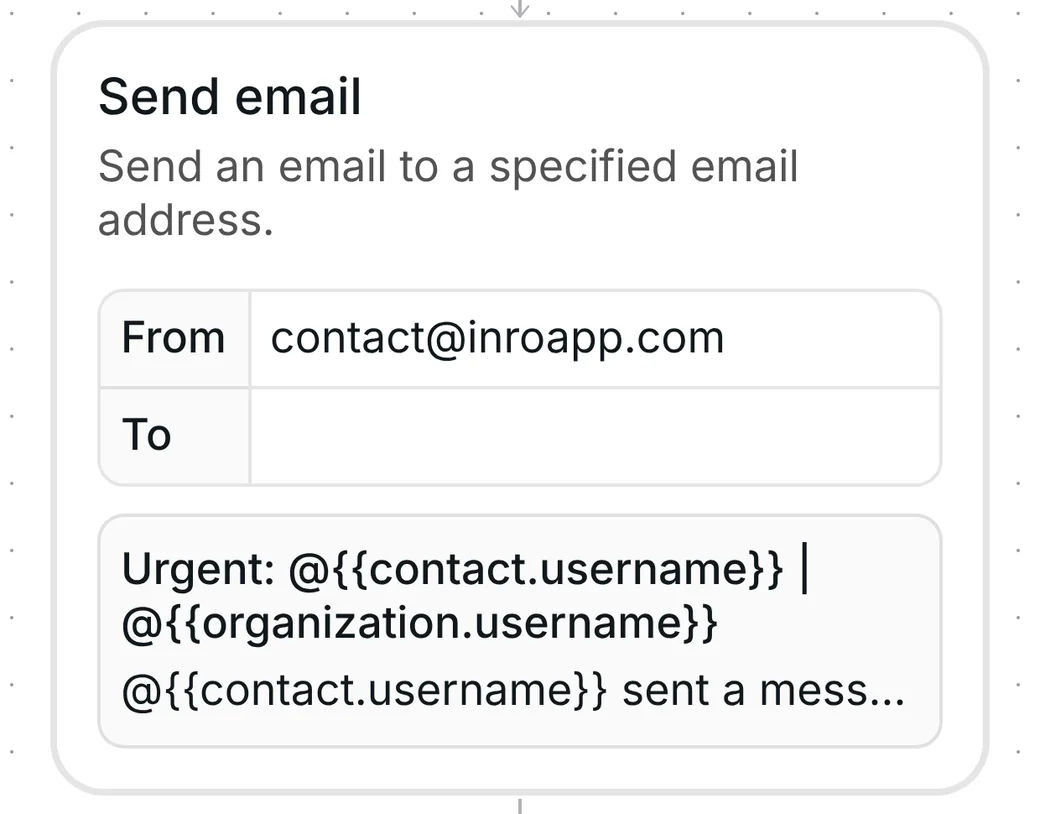
You can list one address or several, so the alert can reach whoever covers your inbox that day.
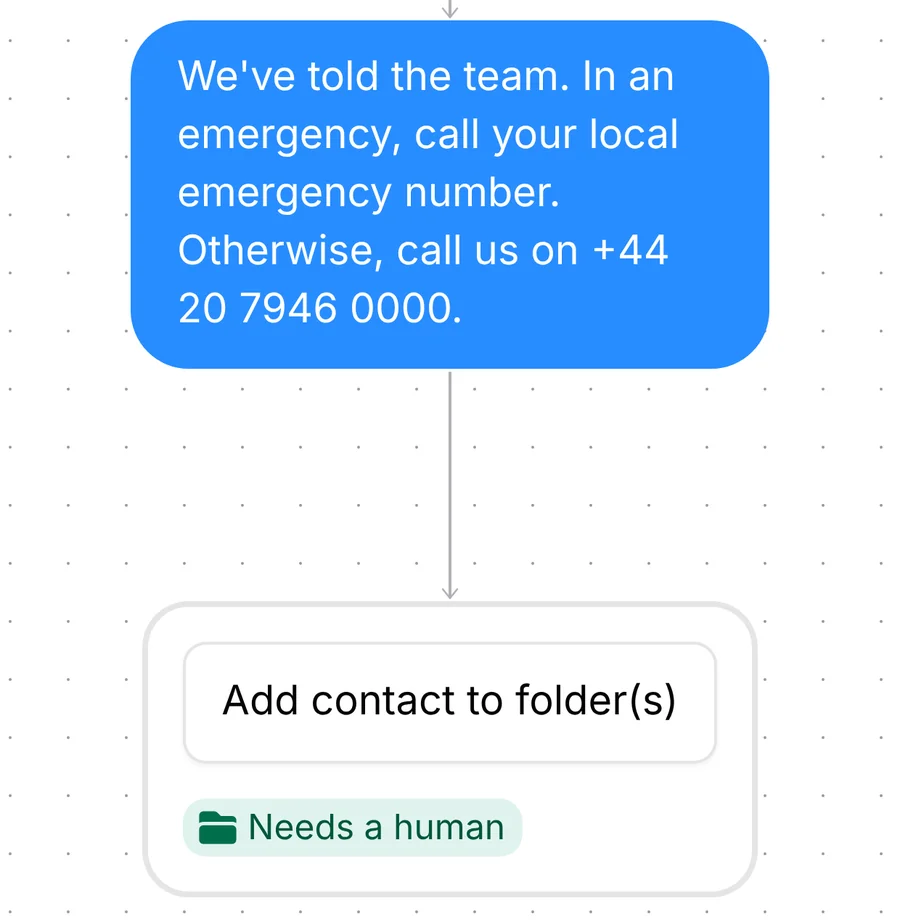
Right after the email, the person gets one message: "We've told the team. In an emergency, call your local emergency number. Otherwise, call us on +44 20 7946 0000."
They know someone has been told, and they know what to do if they cannot wait. The phone number is an example. You replace it with your own before you go live.
The last step adds the person to the folder "Needs a human". A folder is a label on a contact. Filter your Inrō inbox and CRM by it and you see everyone who is waiting for a reply from you.
The three steps run one after the other with no wait and no branch. The template uses no AI agent and writes no AI reply: the only AI is the intent check in the two triggers. After the email, the rest of the work is yours: read the chat and answer the person yourself.
The two triggers come set up: a DM that matches either sentence starts the template, on the first message and on any later one. The default sentences suit clinics and other local businesses that take urgent questions by DM. If yours is a different business, rewrite them.
Check five things before you go live:
Then test it. Write a message that fits one of your sentences from a second Instagram account you own, and check that the email arrives. Turn the template on when it does.
Use this template. When a DM matches one of its two sentences, Inrō emails the address you set, sends the person a short reply and adds the chat to the folder "Needs a human".
No. The template has no AI agent and writes no AI reply. The only AI is the check of the message in the two triggers. The AI agent has its own settings for handing a chat to a person.
The subject reads "Urgent: @username | @youraccount". The body says the person sent a message that may be urgent and tells you to open the chat. It does not quote their message.
Open each of the two triggers and rewrite its sentence in plain words. Say which messages must reach you, and keep the line that leaves out short button replies and routine questions.
Not sure how it work?
Read posts about templates on our blog.
Become a creator
Submit your template to the Inrō template gallery and get featured – all in just a few clicks.

It clones straight into your account. Change the message to sound like you, then switch it on.