Want the people who already follow your work to hear about your launch the day it opens? Send one DM, with your link, to the audience you choose, and see who tapped it.

Kshitij Maheshwari


Send your launch announcement and a link card to the audience you pick, and see who tapped. A DM campaign to copy and edit.
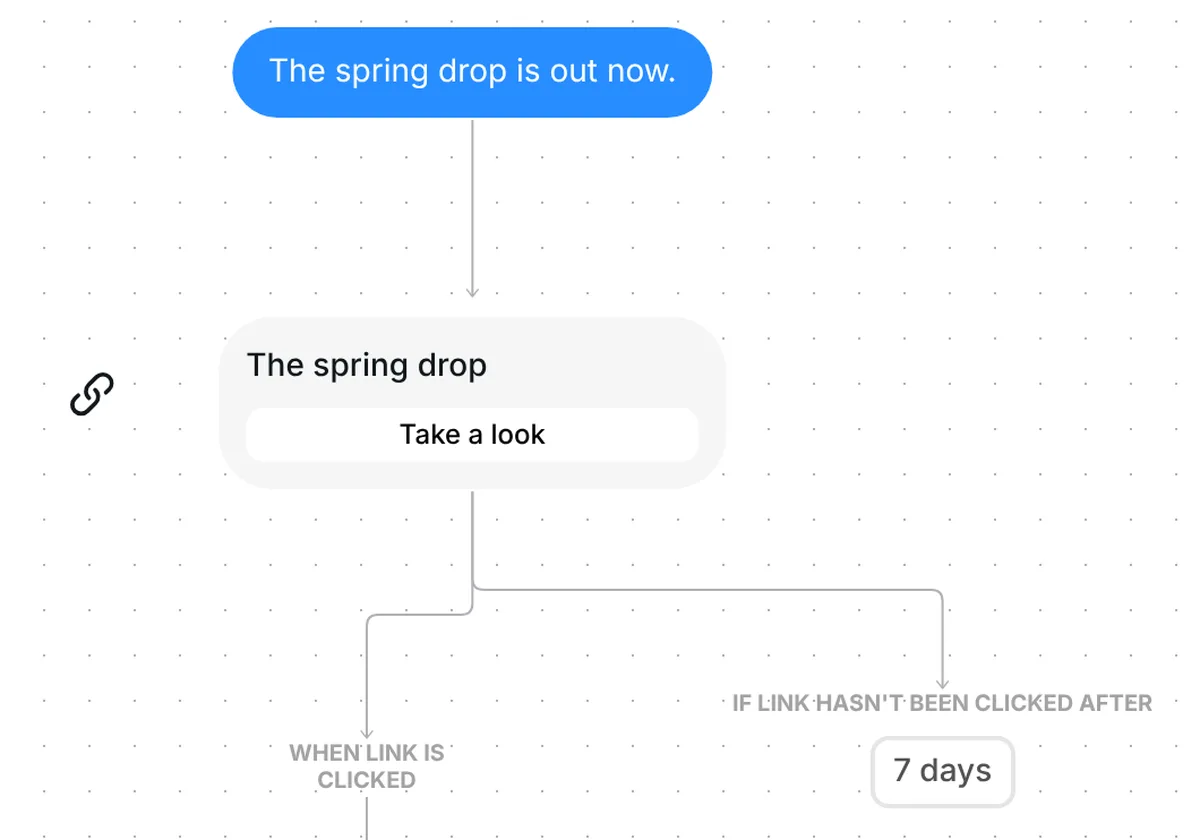
Choose who gets your launch announcement and press send. This Instagram launch campaign template sends each person "The spring drop is out now." and a "Take a look" link card. Everyone who taps goes into the folder "The spring drop: clicked", so you can message them again. It is a DM campaign, sent once to a whole audience.

Each person in your audience receives the campaign once.
The first message is one line: "The spring drop is out now." It is an example. Replace it with your own announcement the day you send it, so the message says what is out and why to look.
Right after the announcement comes a link card titled "The spring drop", with the button "Take a look". The button opens https://inro.social/?utm_campaign=spring-drop&utm_content=campaign-launch, an example address with two UTM tags: utm_campaign and utm_content. Swap in your launch page and keep tags of your own, and your analytics can tell this launch from your other traffic.
The card has no subtitle and no image. Both are optional, and if you leave a field blank Inrō can fill it from the linked page. The link arrives as a tappable card, not as raw text in the message.

Inrō counts every tap on the button, per contact. The campaign's Insights show Clicked on this step, and any number above zero opens the list of contacts behind it. Each person who taps goes into the folder "The spring drop: clicked", and a "Clicked conversion link" filter finds them again later.
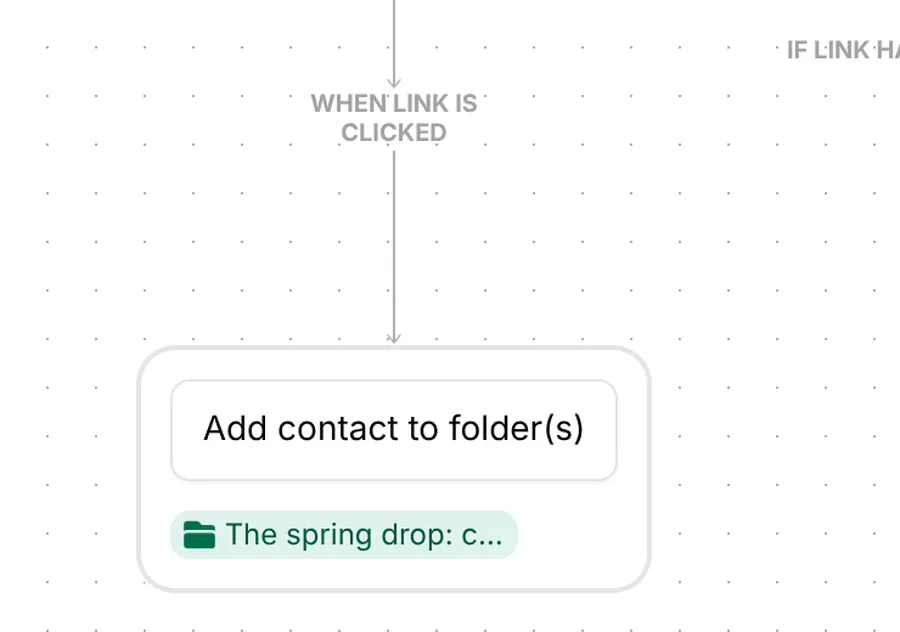
What Inrō counts is taps on your link. It does not count orders, so use your own store or site analytics for what happens after the tap.
The link card waits 7 days before its "link hasn't been clicked" branch would run. A new link step waits 3 days by default, so this template sets a longer wait for a launch. Nothing is attached to that branch, so add a short message there if you want one. A tap after the 7 days still counts and still files the person in the folder.
The campaign arrives as a draft with no audience. Choose who gets it first, then replace the example text and link. The guide to Instagram DM campaigns covers sending in general.
Check six things before you press send:
Your audience is fixed the moment you press send. People who join your folder afterwards do not receive this campaign. Read more about DM campaigns in Inrō.
Only the contacts you choose, minus anyone you leave out, and only contacts Inrō can message. The template arrives with no audience, so you pick it before you send.
Yes. The campaign's Insights show Clicked on the link step, and any number above zero opens the list of contacts. Each person who taps is also added to the folder "The spring drop: clicked".
No. It counts taps on your link, not orders. The link carries UTM tags, so your own analytics can count the visits that follow.
You can send it now or schedule it. Either way, send a test to yourself first with "Send a test" next to "Send campaign".
Not sure how it work?
Read posts about templates on our blog.
Become a creator
Submit your template to the Inrō template gallery and get featured – all in just a few clicks.

It clones straight into your account. Change the message to sound like you, then switch it on.