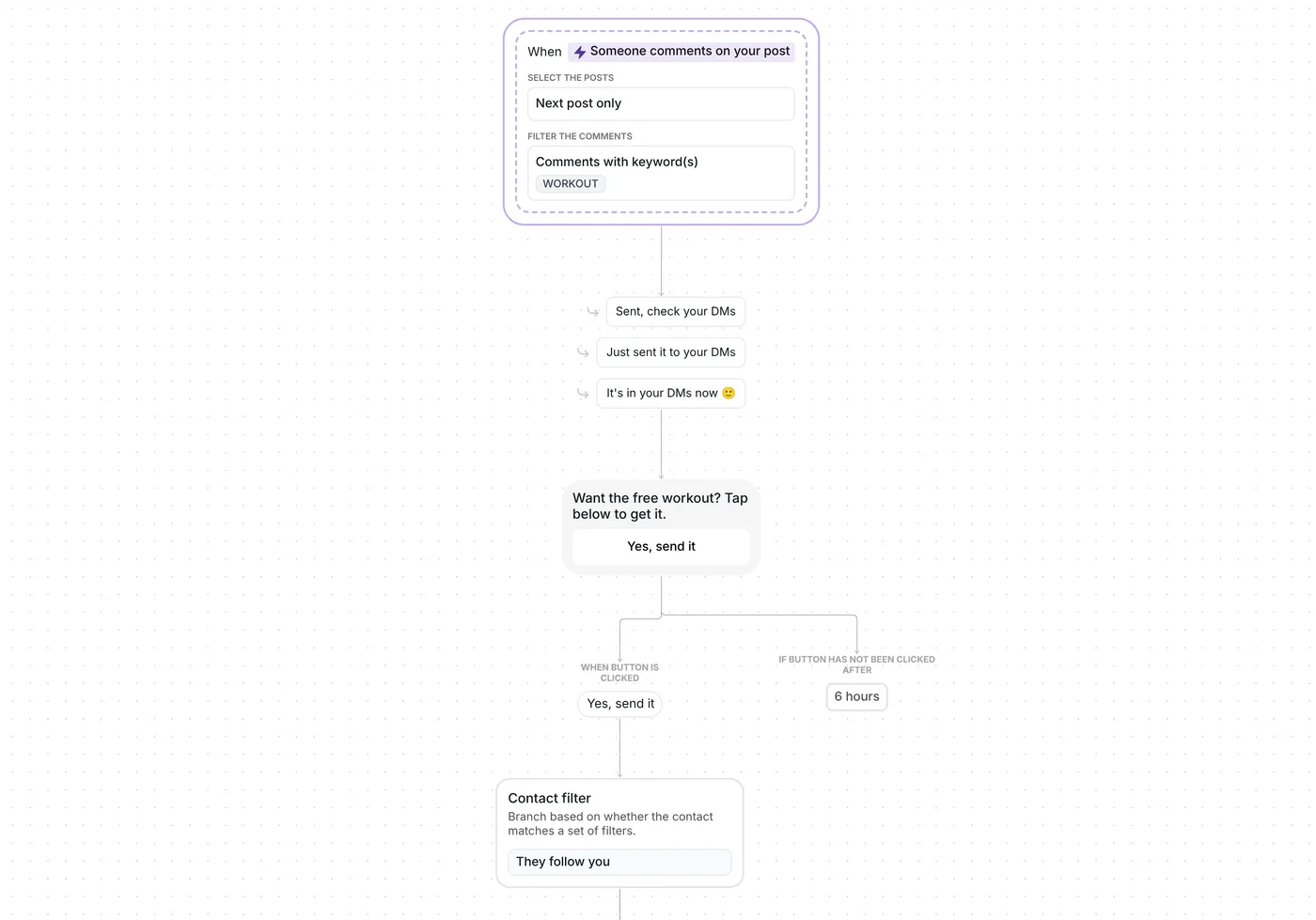
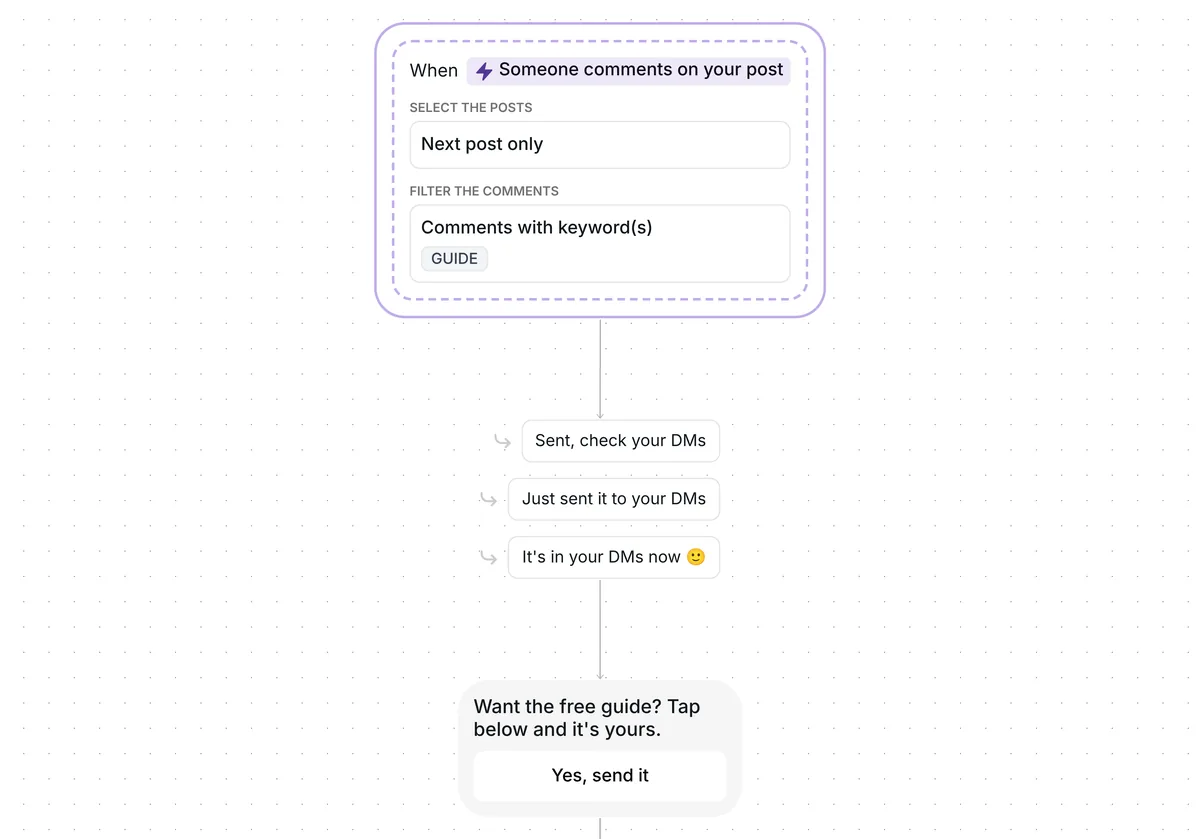
Want to hand your free guide, cheat sheet or checklist to everyone who asks for it in your comments? This template puts the file in their DMs and asks for nothing in return.

Kshitij Maheshwari


Someone comments CHEATSHEET, taps one button in your DMs, and your PDF arrives with a Download it button. Copy the template and upload your file.
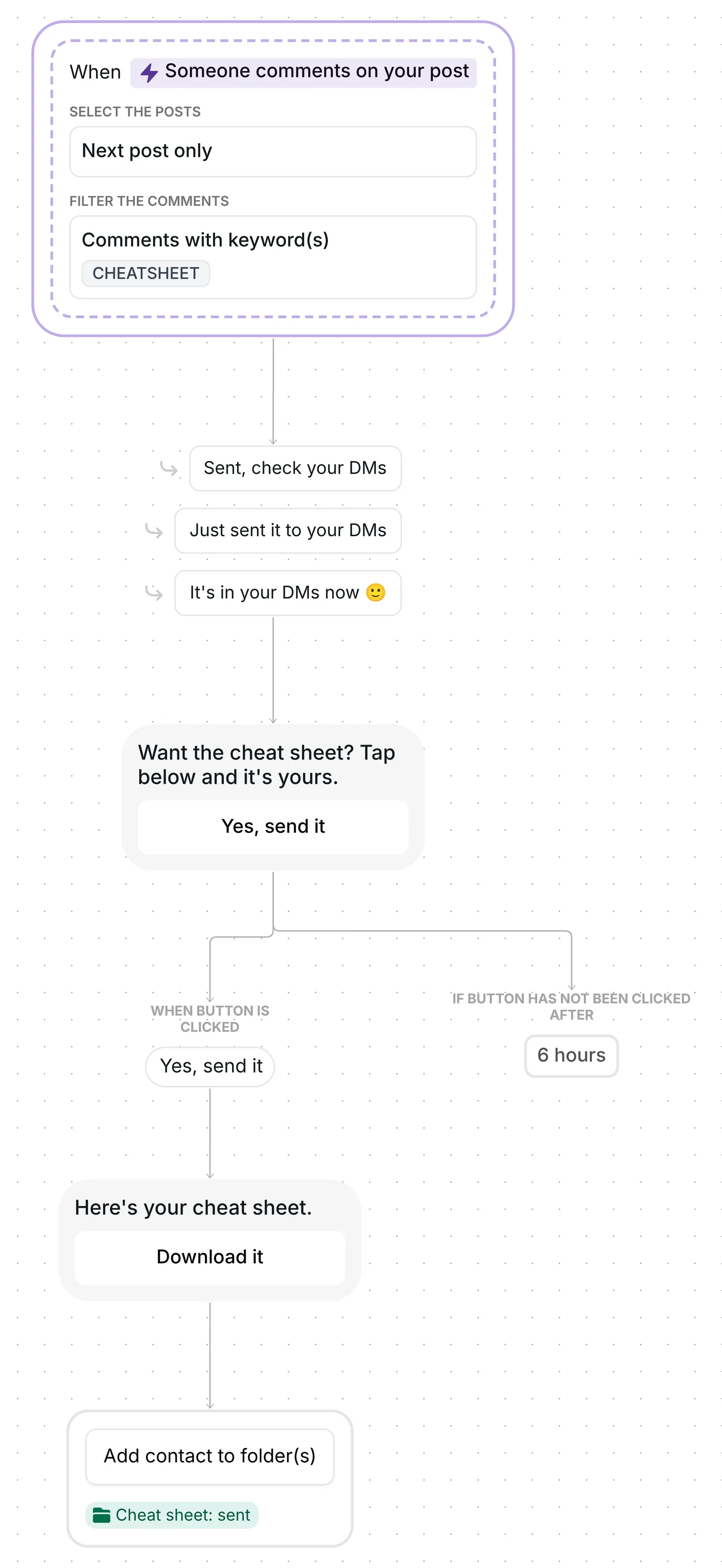
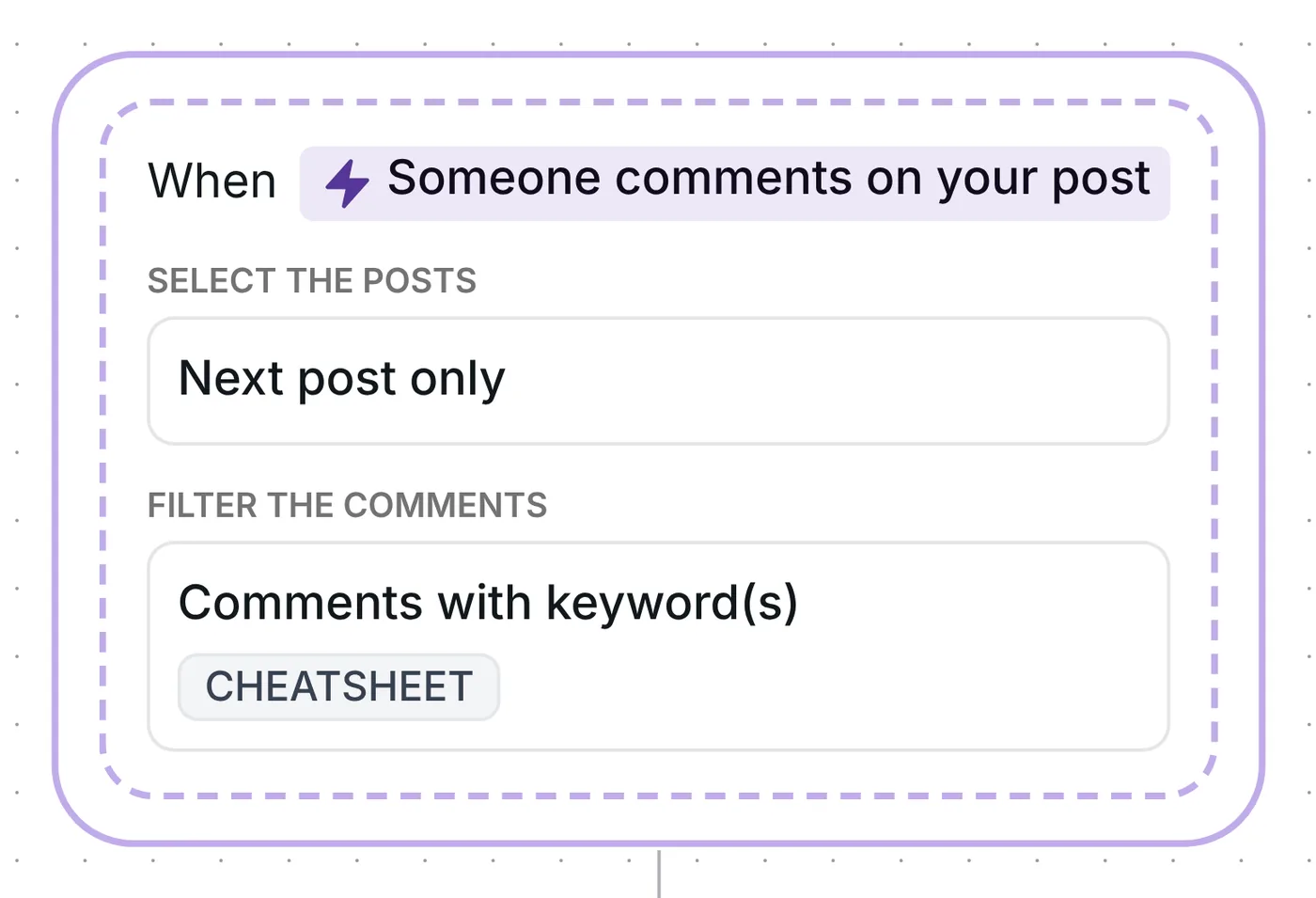
This template sends your PDF by DM to anyone who comments CHEATSHEET on your next post. The DM opens with a single button, "Yes, send it"; a tap sends the file straight into the chat with a "Download it" button, and Inrō adds the person to a folder, so you always know who has it.
Only top-level comments on the post count; a reply inside someone else's thread does not start anything. Inrō looks for CHEATSHEET as a whole word, ignores capitals, and accepts the plural, so "cheatsheet please" and "CHEATSHEETS" both fire it.
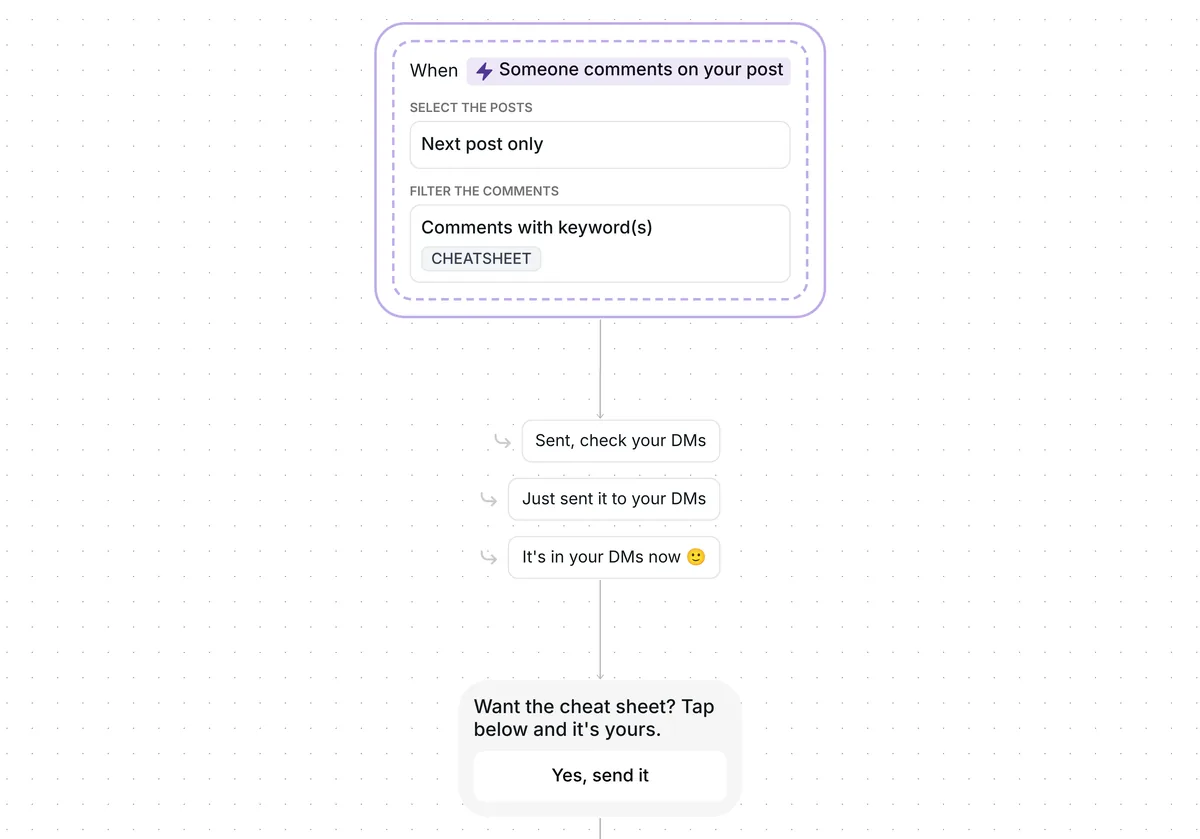
Three public replies take turns under the comments, picked at random: "Sent, check your DMs", "Just sent it to your DMs" and "It's in your DMs now 🙂". Each one goes up only after the DM has left, so nobody reads "check your DMs" before there is something to check. Inrō delivers that DM with its comment to DM feature.
Copying the template saves a start date in the trigger, and the next post you publish after it is the one covered. Setup check 1 below covers that date.
The first DM says "Want the cheat sheet? Tap below and it's yours." and offers one button, "Yes, send it".
Why a button and not the file right away? A business may send a single private message to a commenter and has to wait for a response before sending more (Meta for Developers, checked 22 October 2026). The tap on "Yes, send it" is that response, and it lets the message carrying your file through.
The window for that tap is 6 hours. After it, the flow sends that person nothing else.
The tap triggers a Send file step. It sends "Here's your cheat sheet." with a "Download it" button, and the button opens your file.
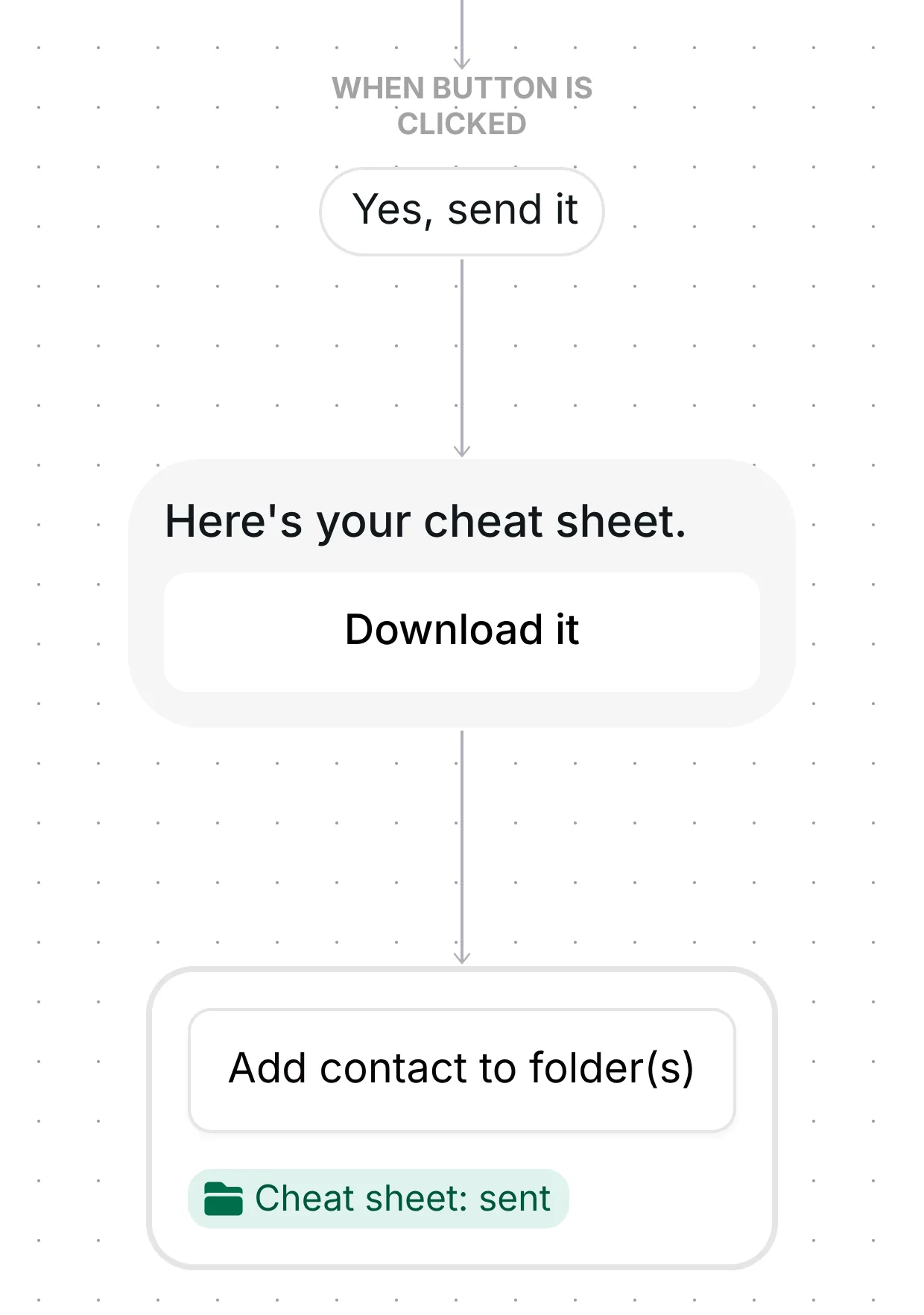
The template comes with no file attached: you upload your own PDF in this step (setup check 2). There is no wait between the tap and the file. Flows that send the next message without a delay converted at 39%, against 32% for flows that wait, measured across the 798,041 conversations in Inrō's DM Benchmark rather than on this template.
Right after the file goes out, Inrō adds the person to the folder "Cheat sheet: sent". Open it any time to see everyone who received the file. The Send file step also counts how many files were sent and how many were read.
The flow ends there. It runs once per person, so a second CHEATSHEET comment from the same account does not send the file again.
Nothing in the trigger needs building: it waits for CHEATSHEET on your next post, reads top-level comments only, and serves each person once.
Six settings to review:
Yes. With this template, the person comments your keyword, taps "Yes, send it" in the DM, and the PDF arrives as a message with a "Download it" button. You upload the file once, in the Send file step.
A PDF or another document, such as a text file. Images and videos go out through a media message step instead. The Send file step is available on the free plan.
Yes, with a different template. Grow followers with a freebie checks that the person follows you first, and Grow your email list from comments asks for an email before the freebie. This one asks for nothing in return.
Open the folder "Cheat sheet: sent". Inrō adds everyone there the moment their file goes out. The Send file step also shows how many files were sent and how many were read.
Not sure how it work?
Read posts about templates on our blog.
Become a creator
Submit your template to the Inrō template gallery and get featured – all in just a few clicks.

It clones straight into your account. Change the message to sound like you, then switch it on.