Want more readers for your newsletter from Instagram, without sending your sign-up link to every commenter by hand? This template gets your sign-up page to each person who asks for it in your comments.

Kshitij Maheshwari


Someone comments NEWSLETTER, taps once in your DMs and gets your Substack, beehiiv, Kit or Mailchimp sign-up page, with one reminder if they wait. Copy it.
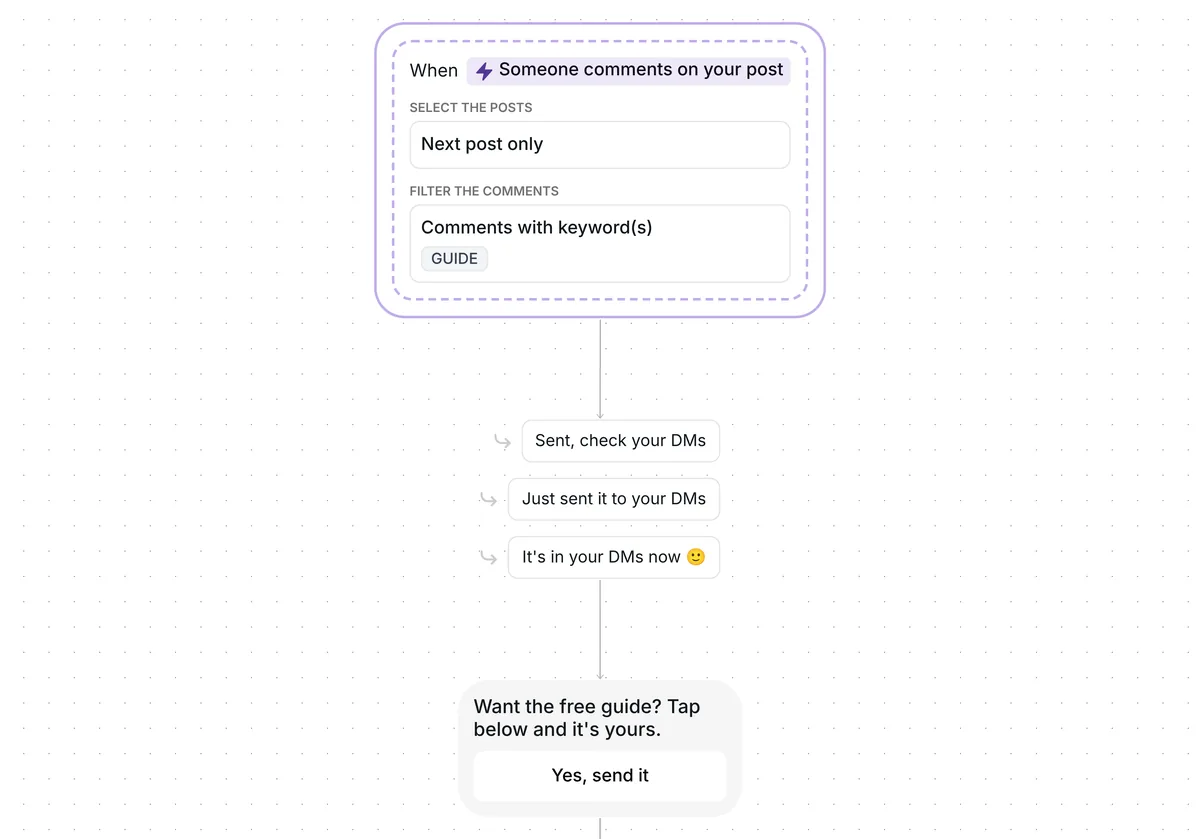
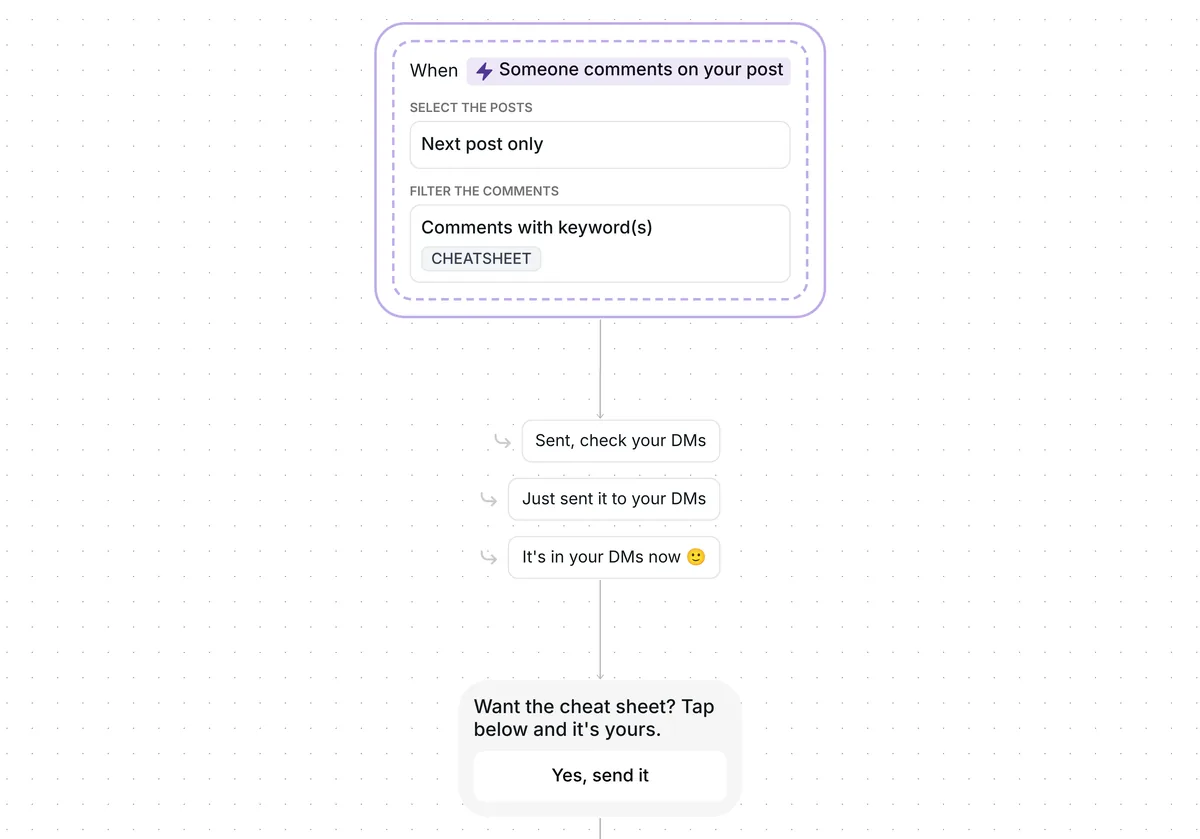
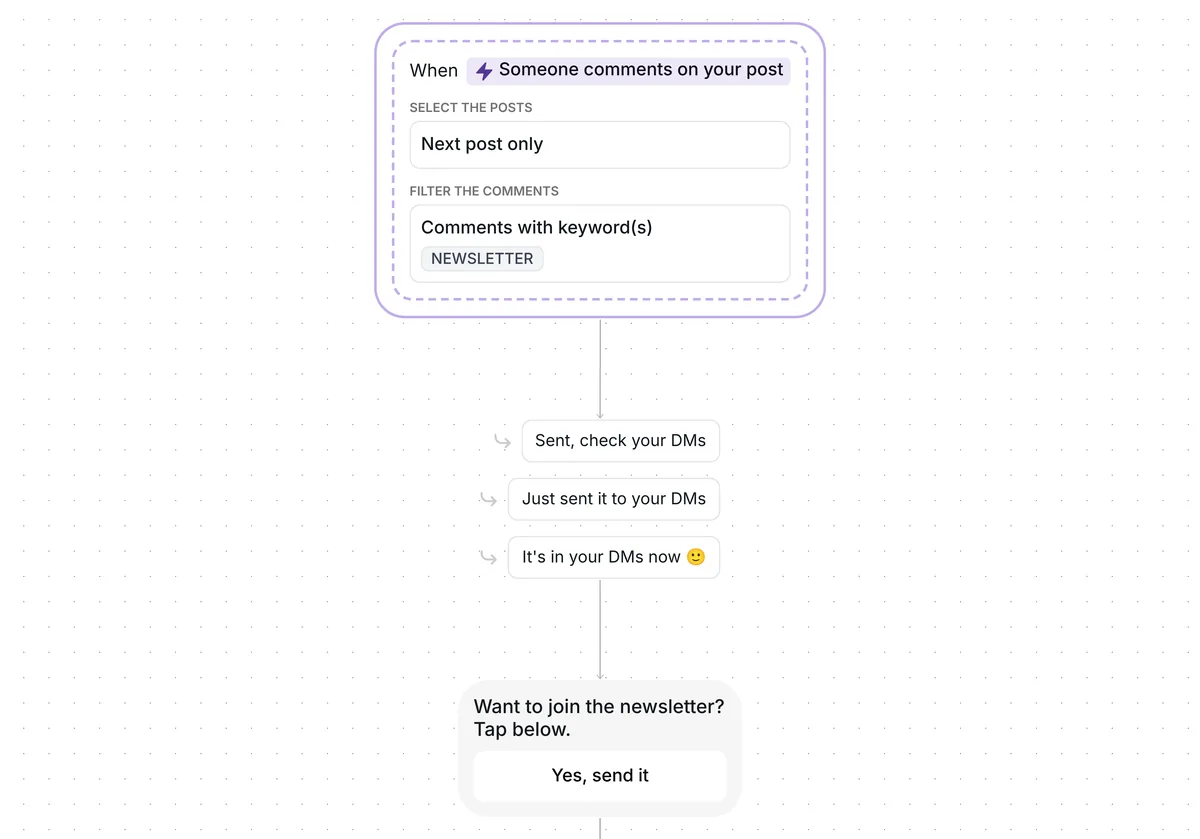
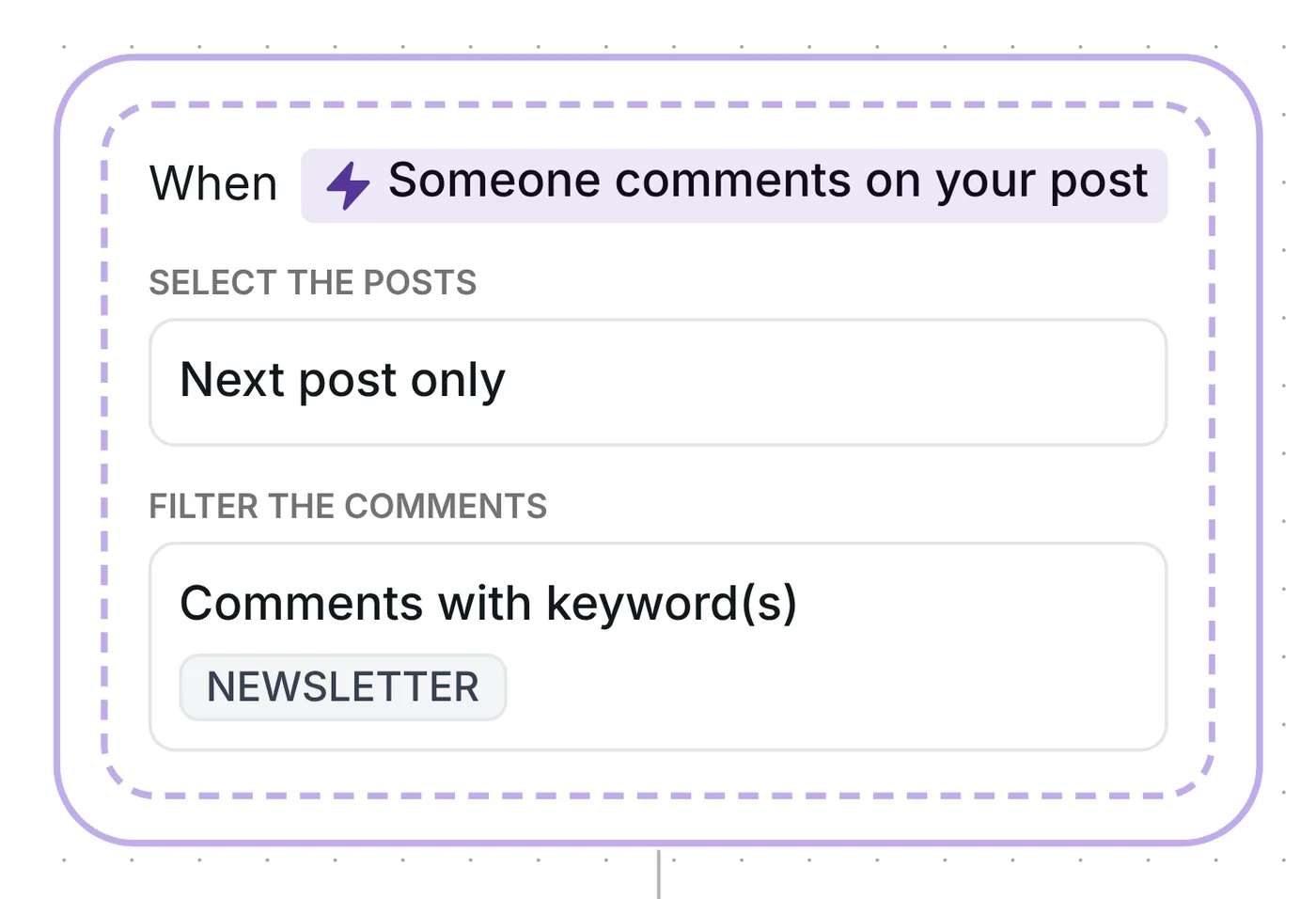
Ask for the word NEWSLETTER in the comments of your next post. Each person who comments it gets a DM asking if they want to join, and a tap on "Yes, send it" brings your sign-up page. They subscribe on your newsletter tool's own page. If the page stays unopened, one reminder follows 2 hours later.

The flow listens to top-level comments on one post and ignores replies under other comments. Capitals and accents make no difference, and NEWSLETTER only has to appear as a whole word, so "Newsletter please" counts, and so does "newsletters". Each DM goes out on Inrō's comment to DM feature.
The comment then gets a visible answer, drawn at random from three: "Sent, check your DMs", "Just sent it to your DMs" and "It's in your DMs now 🙂". It is posted after the DM, never before. Public reply plus DM: 46% conversion. DM alone: 29%. Those figures come from the 798,041 conversations in Inrō's DM Benchmark, not from this template.
One post is in scope: the first you share once the trigger's date is behind you. That date is filled in when you copy the template; setup check 1 below resets it.
The opener asks "Want to join the newsletter? Tap below." over a single "Yes, send it" button.
That single message is all a comment allows at first: Meta's private replies open the chat, and it only continues if the person answers (Meta for Developers, checked 22 October 2026). Here the answer is a tap. It is the reader saying yes to your newsletter, and it lets the sign-up page and the reminder through. Without a tap in the next 6 hours, the flow goes quiet for that reader.
Next comes a link card called "Newsletter sign-up", with "Join the newsletter" as its button. It points to an example address until you paste your own. The reader subscribes on your newsletter's own page, so the address goes straight into your newsletter tool, not into Inrō.

"Newsletter: clicked" collects everyone who taps "Join the newsletter". A late tap counts too, even one that comes after the reminder.
Readers who leave the card closed for 2 hours get a single follow-up, "Have you checked the link yet?". Anyone who already tapped "Join the newsletter" is skipped. The wait decides when that follow-up is sent and nothing else: the sign-up page stays reachable from the card.
Any web page fits in the card. Use your Substack, beehiiv, Kit or Mailchimp sign-up page, or a form on your own site. There is nothing to connect between Inrō and your newsletter tool, and readers sign up with whatever confirmation step that tool already uses.
Would you rather collect the address inside the DM? Grow your email list from comments asks "What's your best email? Your checklist comes right after." and checks the format before it sends the link. This template keeps the sign-up on your own page.
More flows for newsletter writers and other creators: Instagram automation for creators.
Your copy listens for NEWSLETTER in top-level comments on your next post, and nobody goes through it twice.
Six details to adjust before you post:
Neither wait is fixed: the button gives 6 hours, the reminder comes after 2, and you can set your own. On the free plan you can run up to 3 automations at once.
Ask for a keyword in a post and send your sign-up page by DM to everyone who comments it. This template does that with NEWSLETTER.
Put the address of your sign-up page in this template's "Newsletter sign-up" card. A Substack, beehiiv, Kit or Mailchimp page works, and so does a page on your own site. Nothing needs connecting.
Inrō sees who opened the sign-up page: those people are in the "Newsletter: clicked" folder. Who actually subscribed shows in your newsletter tool.
Yes, with Grow your email list from comments, which asks for the address and checks it before it sends the link. This template sends people to your own sign-up page instead.
Not sure how it work?
Read posts about templates on our blog.
Become a creator
Submit your template to the Inrō template gallery and get featured – all in just a few clicks.

It clones straight into your account. Change the message to sound like you, then switch it on.