
Instagram Reels now pause with a single tap. Here is how the new tap-to-pause feature works on iPhone and Android, how to pause without holding, and what changed.
.avif)
Automate Comments and DMs in 5 Minutes
Someone comments on your IG post. They get a DM instantly. You do nothing.

Trusted by 10K+ creators and SMBs


TL;DR
TL;DR
If you have ever tapped a Reel to pause it and accidentally muted it instead, that confusion is now resolved. Here is exactly how the new controls work and what changed.
Your Reels are easier to watch. Now make them easier to act on.
When viewers pause to read your on-screen text, they are paying attention. Turn that attention into a DM conversation the moment they comment.
Until today, tapping a Reel on Instagram did different things depending on which version of the app you had. Instagram was running an A/B test where some users got tap-to-pause and others got tap-to-mute when they tapped the screen. This meant two people on the same phone model could have completely different experiences watching the same Reel.
Before the update, the intended way to pause a Reel was to press and hold the screen. This was awkward on most smartphones, particularly when you wanted to quickly pause to read on-screen text, follow a tutorial step, or check a caption.
Instagram has now made both behaviors consistent and separated them.
Tap once to pause. Tap again to resume.
That is the entire change. A single tap anywhere on the screen now pauses the Reel. A second tap resumes it. You no longer need to hold the screen.
This works on both iPhone and Android. On the web version of Instagram, tap-to-pause was already the default behavior, so this update brings the mobile app in line with how the desktop experience already worked.
The rollout is happening in phases, so if your app has not updated yet, you may still see the old hold-to-pause behavior. Update Instagram to the latest version and check again.
With the new update, you no longer need to hold the screen to pause. A single tap does it.
If you are on an older version of the app and the tap-to-pause feature has not reached you yet, the workaround is to press and hold anywhere on the screen until the Reel freezes. This was the standard method before the update and still works on unupdated versions.
There is no hands-free pause option built into Instagram natively. Third-party accessibility features on iPhone (such as AssistiveTouch) and Android (such as accessibility switches) can simulate taps without touching the screen, but Instagram has no built-in hands-free pause control.
When you pause a Reel using the new tap-to-pause feature, a mute button appears on screen above the play/pause button. You can tap it to cut audio without stopping the video entirely.
Previously, tapping the screen could activate mute instead of pause depending on your account's test group. Now the two functions are completely separate:
This distinction matters for creators who add on-screen text, captions, or tutorial steps to their Reels. Viewers can now pause cleanly to read without accidentally muting.
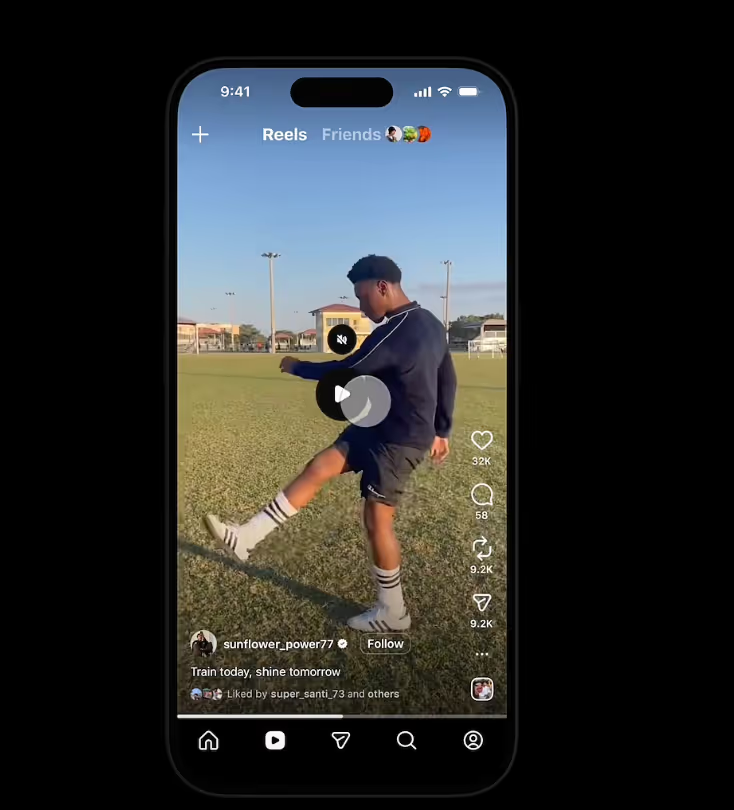
The steps are the same on both platforms after the update.
If tapping is still muting instead of pausing on your device, your app has not received the update yet. Go to the App Store (iPhone) or Google Play Store (Android) and update Instagram to the latest version. The feature is rolling out gradually, so there may be a short delay before it reaches your account.
Instagram Lite follows the same core update but may receive the feature on a slightly delayed rollout compared to the full app. If you use Instagram Lite and tap-to-pause is not working yet, update the app and check again in a few days.
On standard Android, the update works identically to iPhone: single tap to pause, single tap to resume.
If tapping is not pausing your Reels, one of three things is happening.
Your app is not updated. The tap-to-pause feature requires the latest version of Instagram. Update the app and the behavior should change.
You are in a region that has not received the rollout yet. Instagram is releasing this in phases. If your account has not received it, you will still see the old behavior temporarily.
You are on Facebook Reels, not Instagram Reels. Facebook Reels has its own controls and update schedule. The Instagram tap-to-pause announcement applies specifically to Instagram, not Facebook. If you are trying to pause on Facebook and it is not working, that is a separate issue from the Instagram update.
You cannot permanently disable Reels on Instagram. The Reels tab exists on all accounts and cannot be removed from the interface.
What you can do is reduce how often Reels appear in your feed by tapping "Not interested" on Reels you do not want to see, which teaches the algorithm to show fewer similar videos over time. You can also choose to mostly use the Following feed rather than the default Home feed, which surfaces more content from accounts you follow rather than algorithmically recommended Reels.
The tap-to-pause update changes how viewers interact with your Reels in a way that benefits content-heavy formats.
Tutorials, recipes, text-heavy educational content, and anything with on-screen instructions all became more watchable overnight. Viewers could not comfortably pause to read or follow along when they had to hold the screen. A single tap removes that friction.
If you create this type of content, the practical effect is that viewers can now engage more deeply with each Reel without struggling with the controls. More pauses mean more time spent on your video, which is a positive signal for distribution.
The other effect is on comment engagement. When a Reel is easier to consume fully, more viewers reach the end, and viewers who reach the end of a Reel are significantly more likely to comment. If your Reels are designed to prompt a response, such as asking viewers to comment a word for a resource or an offer, this update makes that mechanic more effective.
With Inrō, every comment that keyword triggers on a Reel sends an automatic DM to that viewer within seconds. The easier Instagram makes it to consume your Reels fully, the more likely viewers are to comment, and the more comments Inrō captures into conversations.
Set up a keyword trigger before your next Reel goes live and Inrō handles every follow-up automatically.


Tap once anywhere on the screen. As of March 2026, Instagram now pauses Reels with a single tap. Tap again to resume. This replaced the old hold-to-pause method.
Tap anywhere on the screen once. The Reel pauses immediately. A mute button appears on screen so you can also cut audio separately if needed.
With the new update, you no longer need to hold. A single tap pauses the Reel. If holding is still required on your device, your app needs to be updated to the latest version.
The most likely reason is that your app has not received the update yet. Instagram is rolling out tap-to-pause in phases. Update the app and check again. If you are on Facebook Reels rather than Instagram, the update does not apply there.
Instagram does not have a built-in hands-free pause option. You can use phone accessibility features such as AssistiveTouch on iPhone to simulate a screen tap without touching the screen, but this is not a native Instagram feature.
No. Reels cannot be permanently disabled on Instagram. You can reduce how many Reels appear by tapping "Not interested" on videos you do not want to see, which adjusts what the algorithm shows you over time.
Instagram does not have a native autoplay disable option for Reels. Videos play automatically as you scroll. Using the Following feed instead of the Home feed gives you more control over what you see, but autoplay itself cannot be turned off.
Previously, tapping a Reel could either pause it or mute it depending on which version of the A/B test your account was in. This created inconsistent behavior across users. Instagram has now standardized tap-to-pause and given mute its own dedicated button, making the controls predictable for everyone.
Yes, the update covers both iPhone and Android including Instagram Lite, though the rollout is gradual. Update to the latest app version if you have not received it yet.
Join automations strategies and Instagram Insights weekly
By entering your email address above and clicking Subcribe, you consent to receive marketing communications (such as newsletters, blog posts, event invitations and new product updates), and targeted advertising from Inrō from time to time. You can unsubscribe from our marketing emails at anytime by clinking on the "Unsubscribe" link at the bottom of our emails. For more information about how we process personal information and what right you have on this respect, please see our Privacy Policy.
Attract more leads, target them with DM marketing, and automate your interactions on Instagram!
.avif)
.avif)
.avif)