
Instagram story size is 1080x1920px at 9:16 ratio. Get every dimension, safe zone, format, and fix for blurry stories. Full guide.
.avif)
Automate Comments and DMs in 5 Minutes
Someone comments on your IG post. They get a DM instantly. You do nothing.

Trusted by 10K+ creators and SMBs


TL;DR
TL;DR
Your Story is live. But if the dimensions are wrong, Instagram crops your text, blurs your visuals, or squishes your layout. This guide covers every Instagram story size you need, in pixels, cm, inches, and ratio formats, plus safe zone rules, Photoshop/Canva settings, how to create and set up Stories, what analytics to track, and fixes for the most common display problems.
Getting replies on your Stories but losing track of them?
Inrō automatically responds to every Story reply with a personalised DM, so you never miss a lead your Stories generate.
The Instagram story size is 1080 x 1920 pixels with a 9:16 aspect ratio. This is a full-screen vertical format designed to fill the entire smartphone display without borders, letterboxing, or cropping on most modern devices.
Instagram accepts stories from a minimum resolution of 720 x 1280 pixels, but uploading at that size risks visible blur on any device with a high-density display, including every iPhone released since 2014. Always create at 1080 x 1920 px.
.avif)
Different tools ask for dimensions in different units. Here is the complete reference.
Note on inches and cm: Instagram is a screen-first platform. Physical units (inches, cm, mm) only apply when you are setting up a canvas in a tool like Photoshop or Illustrator at a specific PPI. For web and screen output, always work in pixels and export at 72 or 96 PPI.
To set up an Instagram story canvas in Photoshop:
For Photoshop in cm or inches: if your document is set to cm or inches, enter 38.1 cm x 67.73 cm at 72 PPI, or 15 in x 26.67 in at 72 PPI. These convert to exactly 1080 x 1920 px.
Safe zone layer: add a guide at 250 px from the top and 250 px from the bottom to mark the safe zone. Place all text, logos, and CTAs within this area.
Story ads use a higher recommended resolution (1440 x 2560 px) because Meta's ad system applies additional compression. Starting at a higher resolution preserves visual quality after that compression.
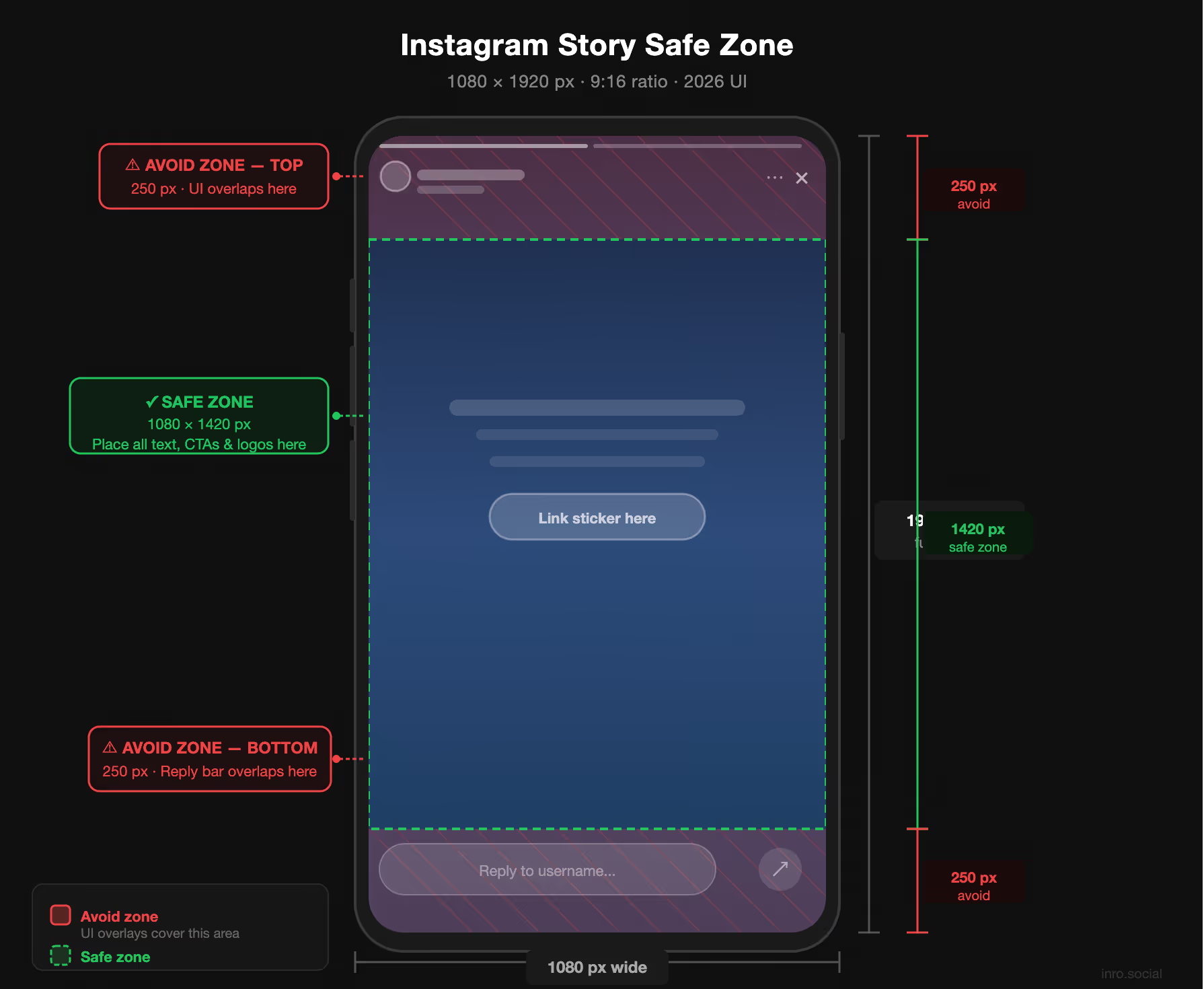
The safe zone is the area of your story that is guaranteed to be visible, without being covered by Instagram's UI elements.
Instagram overlays the following on every story:
Safe zone dimensions: 1080 x 1420 px, centered vertically on the 1080 x 1920 canvas.
Place all text, logos, product names, prices, and CTAs within this 1420 px vertical window. Anything outside it risks being obscured by Instagram's native UI.
To post an Instagram Story, open Instagram and tap your profile photo in the top-left corner of the home feed, or swipe right from anywhere in the app to open the camera.
From a desktop: go to instagram.com, click the "+" icon, select "Story", upload a 1080 x 1920 px file, and publish. Desktop story creation supports images and videos but not all interactive stickers.
Interactive elements are what separate passive Stories from Stories that generate replies, clicks, and DMs. To add them, tap the sticker icon (the square smiley face) in the top toolbar after capturing or uploading your content.
paste any URL into the link field, customize the sticker text, and position it within the safe zone. Any account can add links to Stories. There is no follower threshold requirement as of 2026.
type your question and customize the two answer options. Viewers tap their choice and you can see results in real time via your Story viewers list. Poll responses also show in your DMs if a viewer replies directly.
Lets followers type a free-text reply directly on the Story. Their answers land in your DMs as individual messages. This is one of the highest-converting Story formats for generating DM conversations because it prompts a direct, personal response.
Set a date and time for an event, launch, or deadline. Followers can subscribe to the countdown and get notified when it ends.
Multiple-choice format with a correct answer you define. Useful for education-based content and follower engagement.
All sticker responses are visible only to you. Viewers cannot see each other's answers.
.avif)
Stories and Reels share the same 1080 x 1920 px dimensions, but they live in different surfaces and serve different purposes. Stories disappear in 24 hours (unless saved to Highlights), while Reels stay on your profile permanently.
Instagram story size converter tip: Canva's free Instagram Story template is pre-set at 1080 x 1920 px. It is the fastest way to resize without a separate converter tool.
Blurry stories are caused by one of three things.
1. Source resolution is too low. If you are starting from an image smaller than 1080 x 1920 px, Instagram upscales it and the result looks soft. Always start at or above the correct dimensions. Never upscale a small image to 1080 x 1920 px and expect sharpness.
2. Instagram's compression is too aggressive. Instagram applies compression on upload, especially over mobile data. Export your image as a PNG for graphics with text, or as a high-quality JPG (85% or above) for photos. Upload over WiFi, not cellular, to reduce the compression Instagram applies in low-bandwidth conditions.
3. Wrong export settings. If you are exporting from Photoshop or Premiere and your output resolution is set to 72 DPI but your canvas was built in inches rather than pixels, the pixel dimensions may be lower than expected. Always verify the final pixel dimensions before export. The file must be 1080 x 1920 px.
Story Highlights are the permanent circles that appear on your profile below your bio. Each Highlight has a cover image that displays at a small size on your profile but is stored at full Story dimensions.
Instagram crops your Highlight cover from the center of the 1080 x 1920 canvas. This means if you upload a full-bleed Story image as a Highlight cover, only the center portion will be visible on your profile. Design your Highlight covers with the main icon or logo centered in the middle 400 x 400 px of a 1080 x 1920 px canvas.
To add or change a Highlight cover: tap and hold a Highlight on your profile, select "Edit Highlight", tap "Edit Cover", and either choose a frame from the Stories in that Highlight or upload a custom image from your camera roll.
To check who has viewed your Story, open it by tapping your profile photo in the Stories tray, then swipe up (or tap the eye icon at the bottom-left). This shows the full viewer list with the number of views at the top.
The viewer list is available for 24 hours while the Story is live. Once the Story expires, you can still access view counts but not individual viewer names unless you save the Story to a Highlight, which retains aggregated insights.
A few things to know about Story views:
Instagram Story insights are available on Creator and Business accounts. To access them, go to your profile, tap the three-line menu, select "Insights", and navigate to "Content You've Shared" then filter by Stories.
The metrics that matter most for conversion: Replies and link clicks are the two signals that indicate a viewer took action rather than just watched. A Story with 500 views and 40 replies is performing significantly better than one with 2,000 views and 2 replies. Back taps indicate a frame was engaging enough to rewatch, which is a strong signal to repurpose that content.
Exit rate on a specific Story frame (especially the first one) is the most useful diagnostic metric. A high exit rate on frame one means your opening Story is not holding attention. A high exit rate on the last frame is expected and not a problem.
Getting the dimensions right is the technical floor. What you do with the space determines whether your Story generates engagement.
Any text placed in the top or bottom 250 px will be hidden behind Instagram's UI. Use the 1080 x 1420 px center area for all important content.
Stories with a single, visible call-to-action (a question sticker, a link sticker, or a "reply to this story" prompt) consistently outperform Stories with multiple competing elements. Decide what you want the viewer to do and design around that action.
Most Instagram Stories are viewed without audio. If your Story is a video with spoken content, add captions or on-screen text so the message lands without sound.
Cropping a horizontal video to 9:16 almost always looks like a crop. Film vertically when possible, or build a vertical composition around your landscape footage rather than just cropping it.
Three to five Stories per day maintains presence without flooding your followers' tray. Bursts of 15 Stories in a row push your earlier frames out of the visible stack before most followers see them.
Stories that ask a direct question ("which one would you pick?", "reply with your biggest challenge") generate Story replies at a higher rate than passive content. Those replies land in your DMs and represent your warmest possible leads.
Story replies are the highest-intent interaction on Instagram. A follower who takes the time to reply to your Story is already engaged. The problem is that at volume, those replies pile up in your DMs faster than you can respond manually.
Inrō's Story reply automation captures every reply your Stories generate and responds with a personalised DM instantly, without you having to monitor your inbox in real time. When you post a Story with a question or a CTA and replies come in, Inrō sends each person a custom response, a link, an offer, or a follow-up question, automatically.
The result: you post a Story once, and Inrō handles every reply it generates, turning passive Story views into active DM conversations while you focus on creating the next one.
Inrō automatically responds to every Story reply with a personalised DM, so no lead slips through while you sleep.


The Instagram story size is 1080 x 1920 pixels. This is the recommended resolution for both images and videos. Instagram accepts a minimum of 720 x 1280 px, but 1080 x 1920 px is required for sharp display on high-resolution devices.
The Instagram story aspect ratio is 9:16. This means the width is 9 units and the height is 16 units. At the standard pixel size, that is 1080 px wide by 1920 px tall.
At 72 PPI (standard screen resolution), 1080 x 1920 px converts to approximately 38.1 cm wide by 67.73 cm tall. Use these measurements when setting up a canvas in a print-oriented tool, but always verify the output is 1080 x 1920 px before export.
At 72 PPI, the Instagram story canvas is approximately 15 inches wide by 26.67 inches tall. At 96 PPI, it is 11.25 in by 20 in. Always check your final pixel dimensions match 1080 x 1920 px regardless of the PPI setting.
In Photoshop, create a new document at 1080 px wide by 1920 px tall, with resolution set to 72 pixels/inch and color mode set to RGB. Export as PNG or JPG (85%+ quality) for best results.
Both use the same dimensions: 1080 x 1920 px at 9:16. The difference is not in size but in how they appear on your profile. Stories disappear after 24 hours (unless saved to Highlights), while Reels stay permanently on your profile grid.
The most common causes are: uploading an image smaller than 1080 x 1920 px, uploading over a slow mobile connection (Instagram applies heavier compression), or exporting at low quality from a design tool. Use PNG for graphics with text, JPG at 85%+ quality for photos, and upload over WiFi.
Yes. Instagram will accept the square image but add black or blurred bars above and below to fill the 9:16 frame. To avoid this, place your square image on a 1080 x 1920 px canvas in Canva or Photoshop and fill the remaining space intentionally before uploading.
The safe zone is the central 1080 x 1420 px of your 1080 x 1920 px canvas. The top and bottom 250 px are covered by Instagram's UI (profile info, reply bar). Keep all important text, logos, and CTAs inside the safe zone.
No. Standard stories use 1080 x 1920 px. Single-image and single-video story ads use a higher recommended resolution of 1440 x 2560 px to account for Meta's additional compression during ad delivery. Story carousel ads use the standard 1080 x 1920 px.
Yes. Inrō operates through Meta's official Instagram API, which means Story reply automation through Inrō is fully compliant with Instagram's platform rules. It is not a third-party scraper or unofficial integration.
Upload Highlight covers at 1080 x 1920 px (the standard Story size). Instagram crops and displays them as a 161 x 161 px circle on your profile, taking the image from the center of the canvas. Keep your icon or logo centered within the middle 400 x 400 px of your canvas to ensure it displays correctly.
Tap the sticker icon in the top toolbar after capturing or uploading your content, then select the "Link" sticker. Paste your URL, customize the button text, and position it within the safe zone. All accounts can use the link sticker on Stories as of 2026, with no follower minimum required.
You can see individual viewer names for up to 24 hours while the Story is live. After it expires, Instagram retains view count and aggregated insight data (reach, impressions, exits) but no longer shows individual viewer usernames, unless the Story is saved to a Highlight.
Personal accounts can see the viewer list and total view count for active Stories, but cannot access detailed metrics like reach, impressions, exits, link clicks, or replies in aggregate. Switching to a Creator or Business account (both free) unlocks the full Insights dashboard for Stories.
Join automations strategies and Instagram Insights weekly
By entering your email address above and clicking Subcribe, you consent to receive marketing communications (such as newsletters, blog posts, event invitations and new product updates), and targeted advertising from Inrō from time to time. You can unsubscribe from our marketing emails at anytime by clinking on the "Unsubscribe" link at the bottom of our emails. For more information about how we process personal information and what right you have on this respect, please see our Privacy Policy.
Attract more leads, target them with DM marketing, and automate your interactions on Instagram!
.avif)
.avif)
.avif)