
You can't edit an Instagram Story's content after posting, but you have 3 real options. Plus: what Instagram's Restyle AI changes before you post. Full guide.
Automate Comments and DMs in 5 Minutes
Someone comments on your IG post. They get a DM instantly. You do nothing.

Trusted by 10K+ creators and SMBs


TL;DR
TL;DR
You posted a Story. There's a typo. The link is wrong. Now what?
Here is exactly what you can and cannot fix, and what to do about it.
You cannot edit an Instagram Story after posting it. Once a Story goes live, the content layer is fixed. Text, stickers, polls, music, GIFs, filters, and the original photo or video cannot be changed without deleting the Story and reposting it from scratch.
This is a deliberate design decision. Instagram Stories are built around immediacy and authenticity. The platform does not offer a draft mode for Stories (unlike Reels and posts), and there is no backend edit function for content once a Story is live.
Here is a complete breakdown:
You can adjust visibility and reply permissions at any time while the Story is live. Open your Story, tap the three dots in the bottom right corner, and tap Story Settings. From there you can hide the Story from specific accounts, switch the audience to Close Friends only, change who can reply (everyone, people you follow, or no one), and save the Story to your camera roll or archive if you did not do so before posting.
These settings affect who sees and interacts with the Story going forward. They do not change anything visible in the content itself.
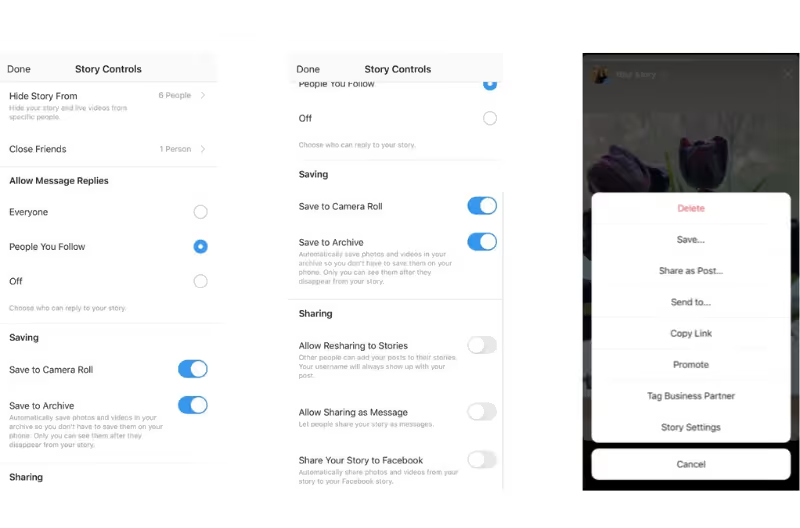
If your Story has multiple slides and the mistake is only on one of them, you do not need to delete the entire sequence. Open your Story, swipe to the specific slide you want to remove, tap the three dots, and tap Delete. That slide is removed immediately. The remaining slides stay live and unaffected. This option is not mentioned in most guides, but it exists and it works.
If the mistake is on a single-slide Story, or if the error changes something meaningful (a price, a date, a link, a tagged username), delete the Story and repost a corrected version. Open the Story, tap the three dots, tap Delete, and confirm. The Story disappears from your followers' feeds immediately, with no notification to viewers.
Before deleting, save the original. Tap the three dots, then Save, and the media will go to your camera roll so you can recreate the Story without finding the original file again.
Post the corrected Story as a new Story. If the original had significant engagement (replies, reactions), those are lost with the deletion. For time-sensitive corrections, act quickly: people who already viewed the original will not be re-notified about the new one.
This is where you can make all the changes that are impossible after posting. Spending an extra 30 seconds on a pre-post check eliminates almost every reason to delete and repost.
Instagram Stories do not have a native preview mode. What you see while building in the editor is your only view before the Story goes live. Scroll through each slide carefully in the editor: check that text sits away from the top and bottom bars (roughly the top 15% and bottom 20% of the screen are covered by Instagram's UI on most devices), confirm any link stickers are placed where they are easy to tap, and verify the music snippet is set to the right starting point. If you want to see the Story as a viewer before it reaches your full audience, post it to your Close Friends list with only your own account selected, review it, then delete and repost publicly. This is the closest available workaround to a true preview.
White text on a light background and dark text on a dark background are the two most common readability mistakes. If the text blends with the background, change the color or add a text background block.
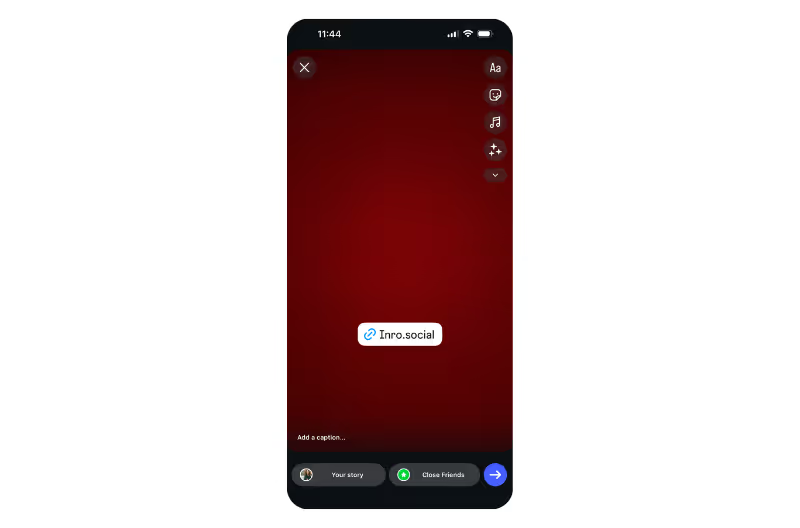
Tap the link sticker in preview mode to confirm it opens the right URL. A link sticker that points to the wrong page is only fixable by deleting and reposting.
Tap any account mentions to verify they resolve to the correct profile. A misspelled handle links to a different account or no account at all.
Play the section you have selected. The clip is locked at posting time. If the wrong 15 seconds plays, change it before sharing.
Instagram Restyle is an AI-powered editing tool built into the Story editor. It was launched by Meta on October 23, 2025. Restyle lets you make substantial edits to your photo or video using natural language prompts before you share, without any third-party app.
To access Restyle, open the Story editor, select your photo or video, and tap the Restyle button at the top of the screen. You will see a set of preset effects (watercolor, film noir, black clothes, sunglasses, and others) that apply with a single tap. After applying a preset, you can type a custom prompt to refine further: "remove the lamp in the background," "add a sunset behind me," "change the wall color to dark green."
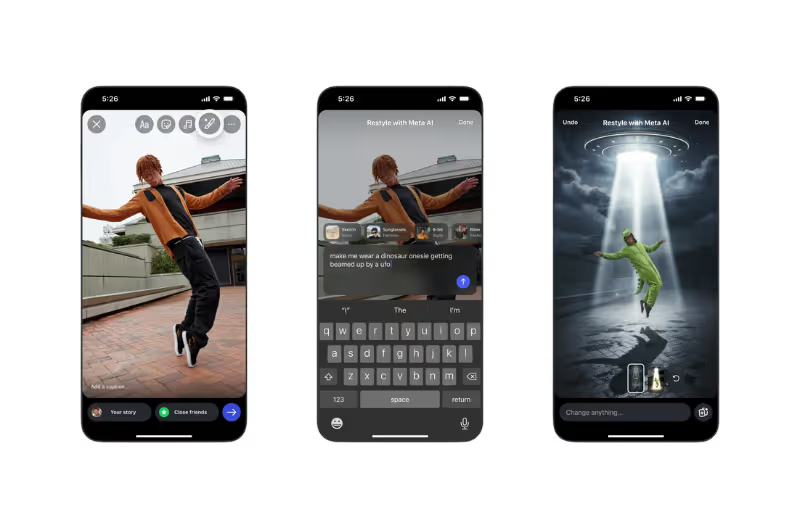
Restyle handles edits that would previously require Photoshop or a separate app: background replacement, object removal, style transformation, and lighting changes. It works on both photos and videos.
One important clarification: Restyle operates inside the Story editor before you post. It is not a tool for editing a Story that is already live. If you restyle a photo and then post it, the posted version is final. The same after-posting limitations apply.
Restyle is rolling out gradually by region. If you do not see the Restyle button in your Story editor, update the Instagram app and check again.
Changing the background color of an Instagram Story is a before-posting edit. There is no way to change the background after a Story is live.
To set a solid color background before posting: open the Story editor, swipe through the camera modes to select a solid color canvas (tap the circle at the bottom left and choose a color), or upload a photo and cover it by drawing a color block over it using the pen tool.
To change the background of a video Story: the Restyle AI tool can change the background behind you or your subject using a text prompt. Tap Restyle in the Story editor, then type "change background to [color or setting]." The AI applies the change while preserving the foreground subject.
The "change background color on Instagram Story" queries in search (approaching 1,000 monthly searches) mostly come from people who have already posted their Story. The short answer in that case: it is not possible after posting. Save the original media, delete the Story, and repost with the corrected background.
Editing a Story well is the input. What happens after you post is where the return comes from. Every time someone replies to one of your Stories, that is a direct, high-intent signal: they saw your content and chose to start a conversation.
Instagram's default handling of Story replies is a standard DM thread. No tagging, no segmentation, no automation. For accounts receiving a handful of replies per week, manually responding is manageable. For accounts running active Story sequences or posting consistently, Story replies can pile up like any other inbox volume problem.
Inrō's Story reply trigger fires every time someone replies to one of your Stories. When a reply comes in, Inrō sends an automated DM response immediately, asks a qualifying question if needed, and tags the contact in your Smart Inbox CRM. You decide what the response says and what follow-up action triggers.
For a creator running a Story with a product recommendation, a coaching offer, or a "DM me for the link" CTA, this means every reply gets an instant, personalised response with the right information, rather than sitting unread until you open the app. Inrō sends one automated reply per contact per Story reply thread by default, so no one receives a duplicated response.
Set up Inro's Story autoreply once. Capture leads from every Story reaction, mention, and reply automatically


No. Once a Story is posted, the content layer is fixed. You cannot change text, stickers, music, filters, or the underlying photo or video. The only way to change content is to delete the Story and repost a corrected version. You can change settings (who can see the Story, who can reply) without deleting.
You cannot edit the content without deleting. What you can do without deleting: change who can see the Story, change who can reply, add the Story to Highlights, or delete one specific slide from a multi-slide Story without removing the rest.
Yes. Open your Story, swipe to the specific slide, tap the three dots in the bottom right corner, and tap Delete. That slide is removed. The remaining slides in the sequence stay live and are not affected.
Instagram Restyle AI is a built-in editing tool launched in October 2025 that lets you modify your photos and videos using text prompts before posting. You can remove objects, change backgrounds, add elements, and apply style effects. Restyle only works inside the Story editor before you share. It does not work on Stories that are already posted.
No. Background color is part of the content layer and cannot be changed after posting. Before posting, you can set a solid color canvas in the Story editor or use Restyle AI to change the background of a photo or video with a text prompt. If the background color is wrong on a live Story, delete and repost.
Yes. Open the Story, tap the three dots, and go to Story Settings. From there you can hide the Story from specific accounts or switch the visible audience to Close Friends only. This change takes effect immediately and does not require deleting the Story.
Instagram Stories are designed as immediate, ephemeral content. The platform does not offer content editing after posting because Stories are built around real-time sharing rather than polished publishing. Any engagement (replies, reactions) on the current Story would be lost or disrupted by content changes, and Instagram's infrastructure treats the Story as a fixed asset after upload.
The replies disappear from the Story thread but the DM conversation with each person remains in your Direct Messages. If someone replied to a Story you deleted, the thread still exists in your inbox and you can still respond to it. The Story preview in the thread will show as unavailable, but the text of the reply is still visible.
No. Instagram does not offer a native draft mode for Stories (unlike posts and Reels, which support drafts). If you want to prepare a Story in advance, create the content in a third-party app and save it to your camera roll. Upload it to the Story editor when you are ready to post.
Inrō's Story reply trigger fires when someone replies to one of your Stories and sends an automatic DM response. You configure what the response says and what follow-up action triggers: a qualifying question, a product link, a tag in your CRM, or a segmentation into a contact folder. Inrō operates through Meta's official API, so the automation is compliant with Instagram's terms of service.
Join automations strategies and Instagram Insights weekly
By entering your email address above and clicking Subcribe, you consent to receive marketing communications (such as newsletters, blog posts, event invitations and new product updates), and targeted advertising from Inrō from time to time. You can unsubscribe from our marketing emails at anytime by clinking on the "Unsubscribe" link at the bottom of our emails. For more information about how we process personal information and what right you have on this respect, please see our Privacy Policy.
Attract more leads, target them with DM marketing, and automate your interactions on Instagram!
.avif)
.avif)
.avif)