Instagram for TV: How to Watch Reels on TV screen

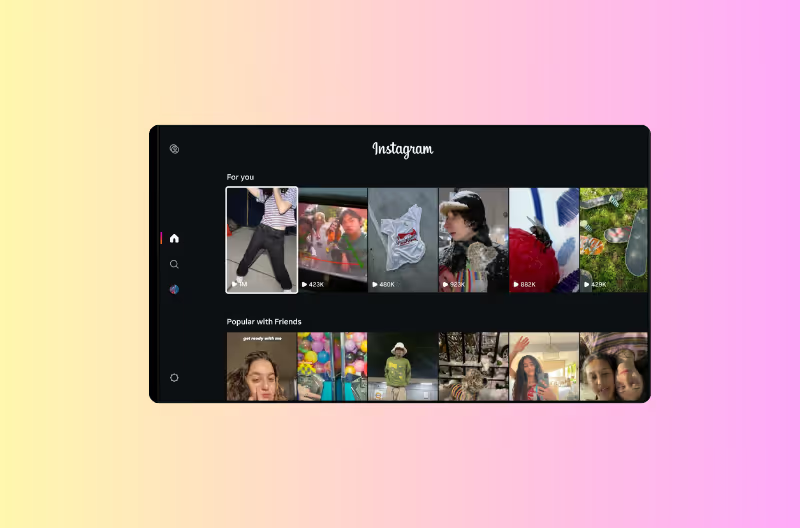
Instagram for TV lets you watch Reels on your TV using Amazon Fire TV devices in the U.S. Learn how to set it up, how channels work, and why this matters for creators who want to turn big-screen views into followers, DMs, and sales.
Instagram for TV: How to Watch Reels on TV screen
Table of content
Share this article
Twitter/XFacebookLinkedinPinterestTelegramWhatsapp

TL;DR

TL;DR: What is Instagram for TV?

If you’re skimming, here are the key points and keywords you probably care about:

  • Instagram for TV is a new app for watching Instagram Reels on TV, currently only on Amazon Fire TV devices in the U.S.
  • You can watch Instagram Reels on TV by downloading the Instagram app from the Fire TV app store, logging in, and browsing Reels channels like sports, music, travel, and trending moments.
  • The app supports up to five accounts per device so everyone at home can get personalized channels.
  • Reels auto-play with full sound, and Instagram is testing features like using your phone as a remote, new ways to channel surf, and shared feeds with friends.
  • Content follows Instagram’s new PG-13 style safety framework, with teen protections similar to the mobile app.
  • For creators, this means your Reels now live in three places: phone feed, Explore/Reels tab, and TV screens in U.S. living rooms — a prime chance to design content and CTAs that work in a shared, big-screen environment.

Instagram for TV: Reels Are Moving From Your Phone to Your TV

Instagram just took a very literal step into the living room.

On December 16, 2025, Meta announced Instagram for TV, a new TV app that lets people watch Instagram Reels on their television for the first time, starting with Amazon Fire TV devices in the U.S.

Instead of casting from your phone, you can now:

  • Install an Instagram TV app on Fire TV
  • Log into up to five Instagram accounts
  • Browse Reels channels like sports, music, travel, trending moments
  • Sit back while Reels play automatically with full sound — no scrolling required

For U.S. creators, especially, this is a big deal. Instagram is explicitly testing a “Reels on TV” experience right as connected TV (CTV) viewing and ad budgets are exploding.

Let’s walk through what Instagram for TV is, how to get it on your Fire TV, and how you as a creator can actually use this to grow — not just give people a new way to doomscroll.

How to get Instagram for TV on Amazon Fire TV

Step 1: Install the Instagram app on Fire TV

On a compatible Fire TV device in the U.S.:

  1. Open the Amazon Appstore on your Fire TV.
  2. Search for Instagram (this is the Instagram for TV app).
  3. Download and install it.

Alternatively, you can start from your phone:

  • Go to Settings & activity in your Instagram mobile app
  • Look for the Instagram for TV option and follow the prompts to link to Fire TV

Step 2: Sign in and add accounts

Once the app is installed:

  1. Open Instagram for TV on your Fire TV.
  2. Sign in with your Instagram account.
  3. (Optional) Add up to five accounts if multiple people in your home use Instagram.

You can even create a dedicated “Instagram for TV” account that isn’t linked to your main profile if you want a separate, lean-back viewing identity.

Step 3: Start watching Reels channels

When you’re logged in, you’ll see Reels grouped into channels, such as:

  • New music
  • Sports highlights
  • Hidden travel gems
  • Trending moments and memes
  • Other categories tailored to your interests

Select a channel → choose a Reel → then sit back. Once a Reel starts, Instagram for TV auto-plays more Reels with full sound, so you get a YouTube- or TikTok-like lean-back experience instead of constant swiping.

instagram tv

Safety & content standards: PG-13 on the big screen

Instagram for TV is explicitly designed for shared viewing, think families, roommates, friends in the same room. So Meta is applying stricter content rules than on some mobile surfaces:

  • Reels on Instagram for TV generally follow the PG-13 rating system Meta recently introduced for mobile, meaning the content should align with what you’d expect from a PG-13 movie.
  • For teens, Instagram for TV mirrors mobile safeguards:
    • Limits access to more mature content, comments and profiles
    • Counts TV watch time toward the teen’s overall time limit
    • Triggers the same “you’re close to your limit” and Sleep mode reminders as the mobile app

For creators, the practical takeaway is:

If you’re monetizing heavily via edgy humor or borderline content, those Reels may be less likely to surface on TV, where Instagram wants to keep things broadly safe and brand-friendly.
creators on instagram tv

Why Instagram for TV matters for creators (especially in the U.S.)

This is not just “cool, my Reels are bigger now.” It fits into a bigger shift:

  • People are increasingly watching short-form video on their TVs, not just phones.
  • Connected TV (CTV) ad spend in the U.S. is growing faster than social video ad spend, and platforms are racing to own that living-room screen.
  • YouTube, TikTok and now Instagram all have TV apps for vertical video.

Here’s what that means for you:

1. Your Reels now play in “watch party” mode

Instead of 1 person scrolling solo, imagine:

  • A group of friends on the couch watching sports highlights
  • A family watching recipe Reels or travel inspiration
  • A couple replaying funny couple content or parenting sketches

Your content is suddenly part of shared conversations, not just private scrolling. That:

  • Amplifies word-of-mouth (“follow this person, they’re hilarious”)
  • Makes your tone & branding more important (you’re being experienced together)

2. Your visuals need to work from across the room

On TV, everything is viewed from a few meters away. So:

  • Tiny on-screen text becomes illegible
  • Low-contrast captions disappear
  • Busy visuals are harder to parse

If you want to perform well on Instagram Reels on TV:

  • Use large, high-contrast text for hooks and titles
  • Keep layouts clean — strong subject, minimal clutter
  • Make sure your logo or handle is visible enough to be remembered

3. Your CTAs must assume “second screen” behaviour

On mobile Reels, people can tap links, buttons, or immediately open your profile. On TV, they can’t.

So your calls to action should target what people do next on their phone:

  • “Grab your phone and DM me ‘TV’ on Instagram, I’ll send you the full guide.”
  • “Search @yourhandle on Instagram and check my Story for today’s link.”
  • “Comment ‘PLAN’ on my latest Reel on your phone and I’ll DM you the checklist.”

Viewers might:

  • See you on TV (Fire TV app)
  • Then open Instagram on their phone
  • Follow, comment, or DM based on your verbal/visual CTA

That’s exactly where Inrō plugs in: capturing those comments and DMs automatically and turning them into structured lead flows.

Strategy: How to adapt your Reels for Instagram for TV

A few practical moves for US creators who want to ride this update:

1. Audit your Reels library for “family-safe hits”

Start with content that is:

  • Visually clean and easy to follow on a big screen
  • Within PG-13 bounds (language, visuals, themes)
  • Already performing well in watch time and shares

Those Reels are your best candidates to be surfaced on TV channels like sports, comedy, travel, lifestyle.

2. Record TV-friendly hooks

When you film new Reels, add big-screen-aware details:

  • Speak your handle out loud in the first seconds (“I’m @username and here’s…”).
  • Use on-screen titles like: “3-Minute Home Workout (TV-Friendly)”.
  • Repeat your CTA verbally at the end: “DM me ‘WORKOUT’ and I’ll send you the full plan.”

3. Build DM funnels around “I saw you on TV”

For example:

  1. Hook inside the Reel (on TV):

“If you’re watching this on your TV, grab your phone and DM me ‘TVSTART’.”

  1. Inrō automation:
    • Detects TVSTART in DMs
    • Sends a welcome message + link (guide, planner, free training)
    • Asks 1–2 qualifying questions
    • Applies tags like SOURCE:INSTAGRAM-FOR-TV or INTEREST:WORKOUTS
  2. Later, you can send DM campaigns to that segment with:
    • Launch announcements
    • Discount codes
    • New long-form or TV-friendly Reels (“Watch this one on your Fire TV tonight”).

This is how you turn “cool, I’m on TV” into measurable growth.

Try Inrō to boost your Instagram growth and sales.

Attract more leads, target them with DM campaigns, and automate your interactions on Instagram!

FAQ: Instagram for TV

1. What is Instagram for TV?

Instagram for TV is a new TV app that lets you watch Instagram Reels on your TV, starting with Amazon Fire TV devices in the U.S. It organizes Reels into interest-based channels and auto-plays them with full sound for lean-back viewing.

2. How do I watch Instagram Reels on TV?

On a compatible Fire TV device:

  1. Download the Instagram app from the Fire TV Appstore.
  2. Sign in with your Instagram account.
  3. Choose a Reels channel (sports, music, travel, trending, etc.).
  4. Select a Reel and watch as more Reels auto-play.

You can also start setup from the Settings & activity section of the Instagram mobile app.

3. Is Instagram for TV available outside the U.S.?

Not yet. For now, Instagram for TV is only available in the U.S. on supported Amazon Fire TV devices. Meta says it plans to expand to more countries and devices over time, based on test results.

4. Can I upload or create Reels from Instagram for TV?

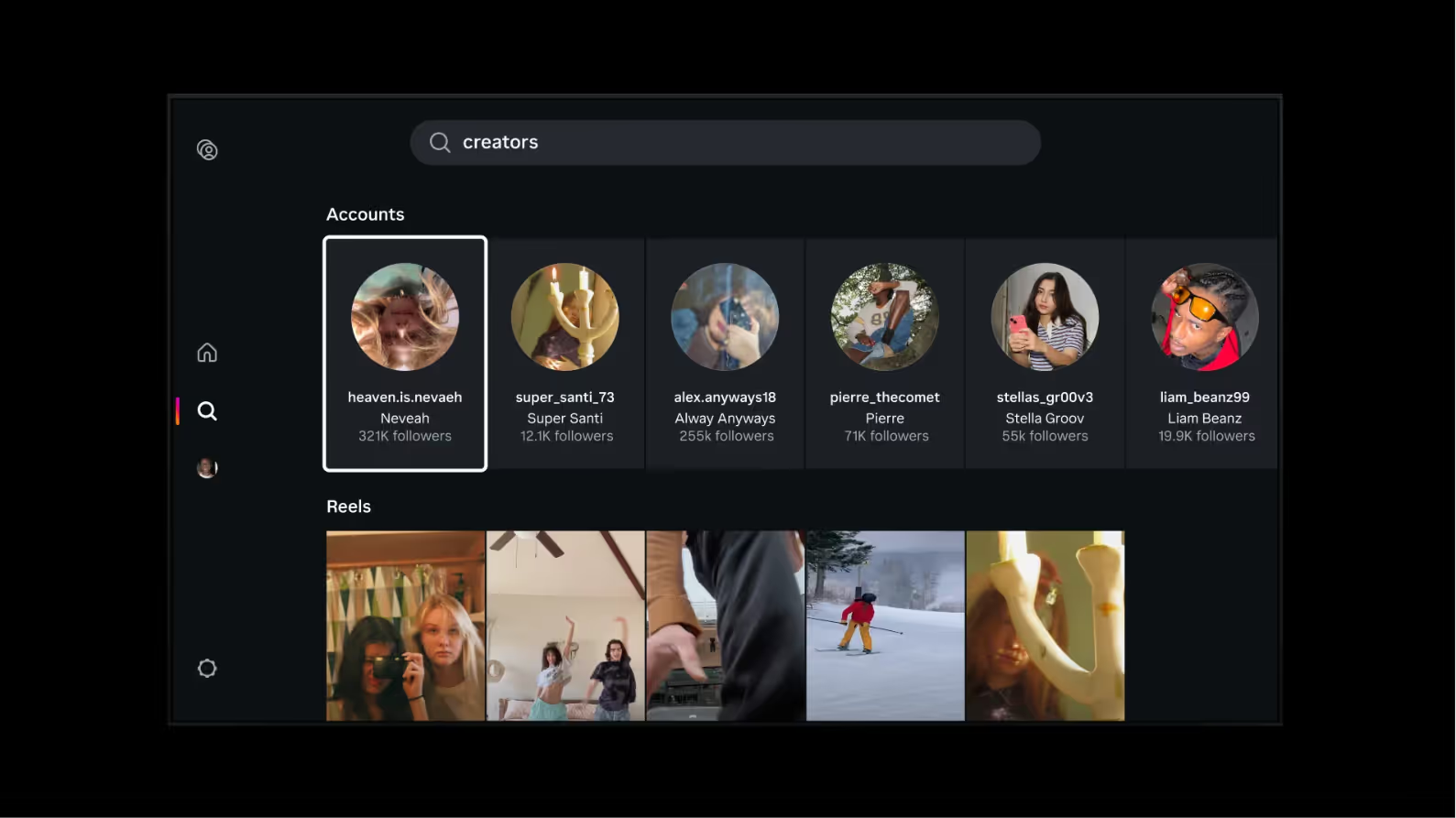
No. Instagram for TV is currently view-only: you watch and browse Reels, switch channels, search creators, like and interact — but you still create and publish Reels from your phone, as usual

5. Is this the same as the old IGTV?

No. IGTV (Instagram’s long-form vertical video app) was discontinued in 2022 as Meta shifted focus to Reels.

Instagram for TV is a new Reels-focused TV experience, not a resurrection of the old IGTV app.

Join automations strategies and Instagram Insights weekly

Thank you! You have been susbcribed to our weekly insights!
Oops! Something went wrong while submitting the form.

By entering your email address above and clicking Subcribe, you consent to receive marketing communications (such as newsletters, blog posts, event invitations and new product updates), and targeted advertising from Inrō from time to time. You can unsubscribe from our marketing emails at anytime by clinking on the "Unsubscribe" link at the bottom of our emails. For more information about how we process personal information and what right you have on this respect, please see our Privacy Policy.

Last updated
December 18, 2025
Category
Instagram News

Related Articles

Try Inrō and leverage the power of Instagram marketing automation

Attract more leads, target them with DM marketing, and automate your interactions on Instagram!